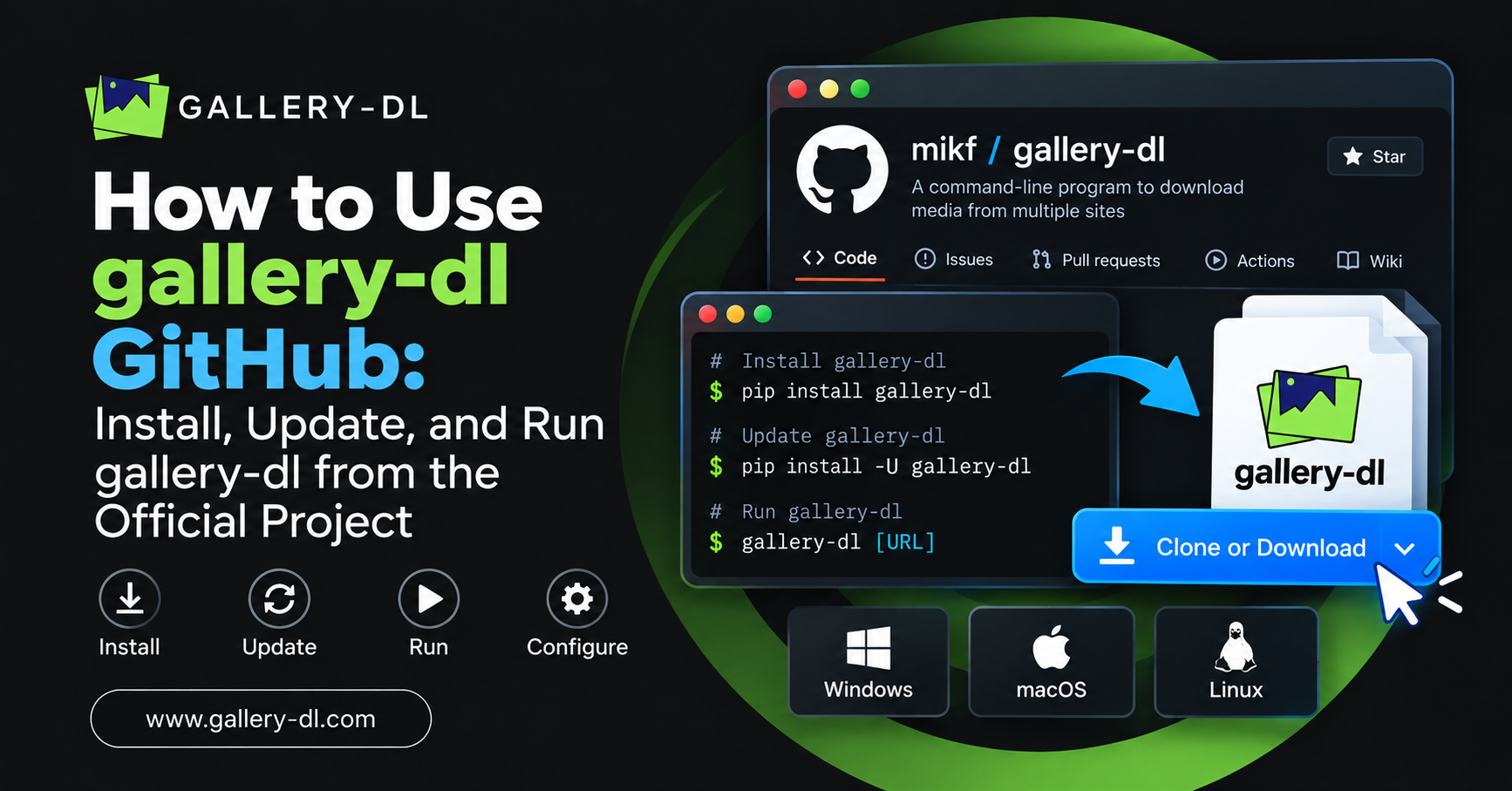
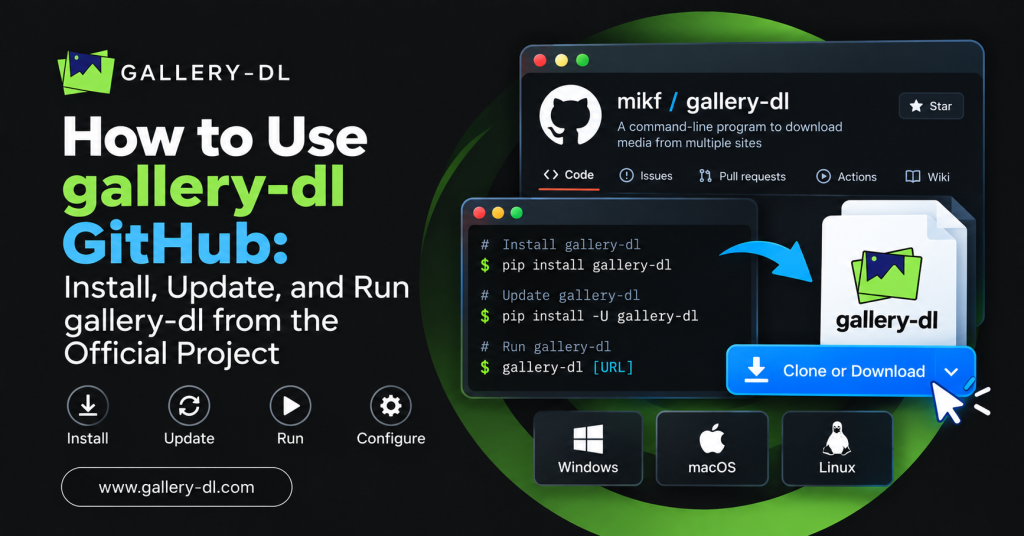
If you are searching for how to use gallery-dl GitHub, you may want to install gallery-dl from its source repository, download a release, report an issue, or understand which project page is current.
gallery-dl is a command-line program for downloading image galleries and collections from supported websites. The GitHub repository is still useful for project information, automated workflows, issues, and some release-related resources. However, active gallery-dl development has moved to Codeberg, so users should check the current official project location before relying on an older GitHub source.
This guide explains how to use gallery-dl safely, how GitHub fits into the project, how to install and update the software, and how to run your first gallery-dl command.
Only download media you own or are authorized to save. Respect website terms, creator rights, privacy settings, copyright law, and access controls.
Table of Contents
ToggleQuick Answer: How to Use gallery-dl from GitHub
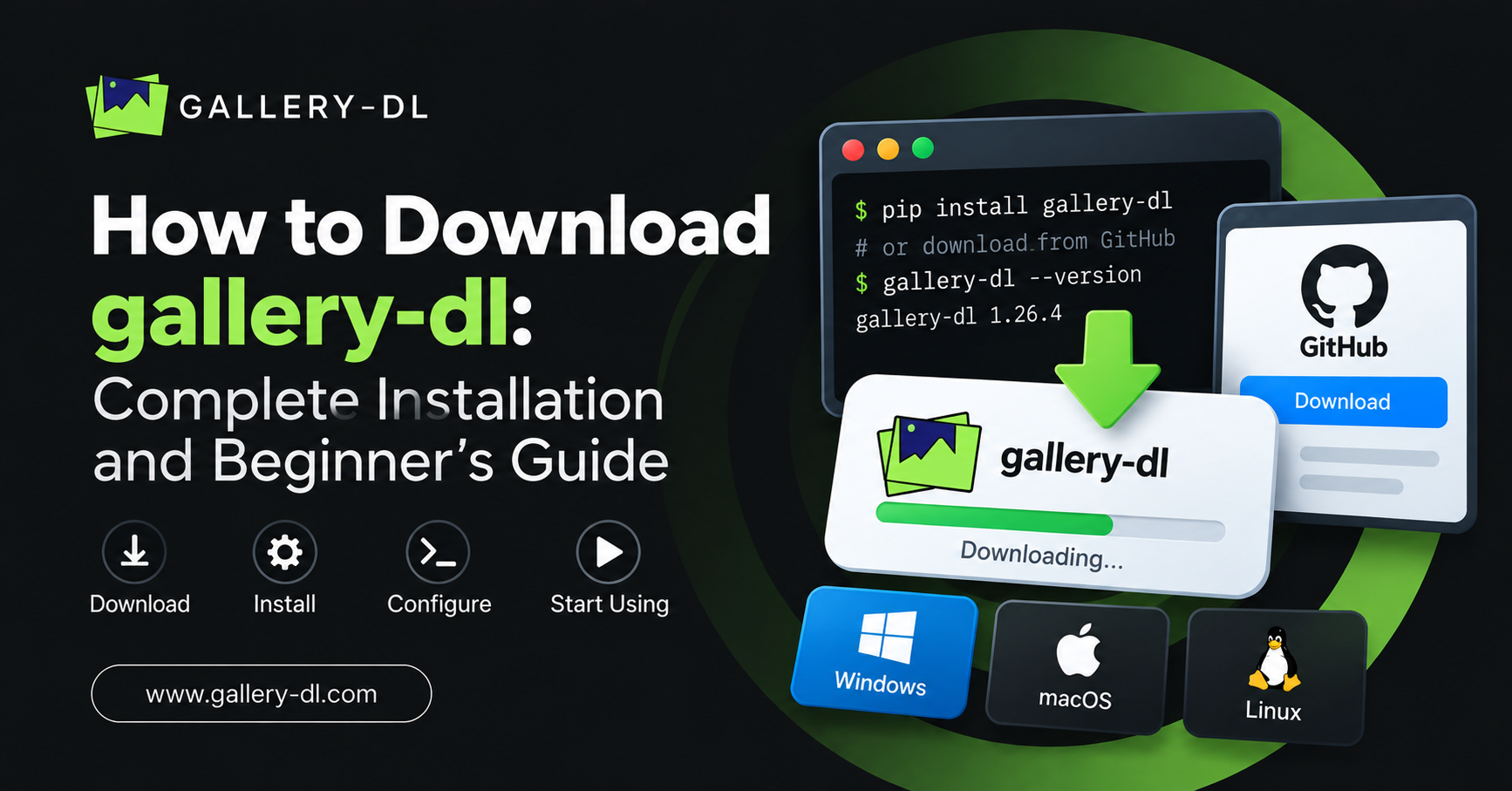
For most users, you do not need to manually download source files from GitHub. Install gallery-dl with pip:
python -m pip install -U gallery-dl
Then check that it works:
gallery-dl --version
To download from a supported public or authorized URL:
gallery-dl "https://example.com/page-url"
The GitHub project states that active development has moved to Codeberg, while GitHub remains available for non-critical infrastructure such as tests, automated workflows, and related resources.
What Is gallery-dl GitHub?
The gallery-dl GitHub repository is the project’s GitHub presence. It contains information that can help users understand the software, including documentation references, issues, discussions, release information, and example configuration files.
For normal users, GitHub is not the gallery-dl app itself. You still need to install gallery-dl on your computer before using commands.
The project’s active development has moved to Codeberg. That means the latest source changes and current development activity may appear there first, while GitHub continues to serve supporting functions.
When Should You Use the gallery-dl GitHub Page?
The GitHub page can be useful when you want to:
- Read the project overview.
- Review installation instructions.
- Check known issues.
- Search for troubleshooting discussions.
- Find historical release details.
- View example configuration files.
- Report a reproducible issue when the project directs you there.
- Confirm whether development has moved or changed.
For day-to-day downloading, install gallery-dl locally and use the command line.
How to Install gallery-dl
The easiest installation method uses Python and pip.
Install gallery-dl on Windows
Open PowerShell or Command Prompt and run:
py -m pip install -U gallery-dl
If the py command is unavailable, try:
python -m pip install -U gallery-dl
Then verify the installation:
gallery-dl --version
Install gallery-dl on macOS
Open Terminal and run:
python3 -m pip install -U gallery-dl
If you use Homebrew:
brew install gallery-dl
Then check:
gallery-dl --version
Install gallery-dl on Linux
Use pip:
python3 -m pip install -U gallery-dl
Or use a supported package manager where available.
gallery-dl’s official project documentation lists pip installation along with Homebrew, Snap, Chocolatey, and Scoop options.
How to Use gallery-dl After Installation
The basic gallery-dl command is:
gallery-dl "URL"
Replace URL with a complete public or authorized link from a supported website.
Example:
gallery-dl "https://example.com/your-approved-gallery/"
gallery-dl checks the URL and selects the correct extractor for a supported website.
The official command format is:
gallery-dl [OPTIONS]... URLS...
Download Files to a Specific Folder
Use the -D option to choose where gallery-dl saves files.
On macOS or Linux:
gallery-dl -D "~/Downloads/gallery-dl" "https://example.com/page-url"
On Windows:
gallery-dl -D "C:\Users\YourName\Downloads\gallery-dl" "https://example.com/page-url"
A dedicated download folder makes your files easier to organize and review.
How to Update gallery-dl
gallery-dl updates can fix website compatibility issues, bugs, and extractor changes.
If you installed with pip, update using:
python -m pip install -U gallery-dl
On Windows:
py -m pip install -U gallery-dl
If you installed through Homebrew:
brew upgrade gallery-dl
Always verify your current installed version after updating:
gallery-dl --version
Should You Download gallery-dl Source Code from GitHub?
Most beginners should use pip or a trusted package manager instead of manually downloading source code.
Using pip is easier because it:
- Installs required Python package files.
- Makes updating simpler.
- Reduces manual setup work.
- Lets you verify the installed version quickly.
Manual source installation is generally more suitable for developers, contributors, or advanced users testing a specific version.
Because active development has moved to Codeberg, do not assume the GitHub source branch is the latest development version. Check the official project’s current status first.
How to Use gallery-dl GitHub Releases Safely
If you choose to use a release file or binary, follow these practices:
- Use only the official project pages.
- Confirm that the release matches your operating system.
- Read release notes before replacing an existing installation.
- Avoid random reposted download links.
- Scan downloaded files with your normal device-security tools.
- Keep a backup of your configuration before changing versions.
- Check the project’s current development location for the newest release information.
The GitHub releases page notes the project’s move to Codeberg and directs users toward current releases there.
How to Create a Basic gallery-dl Configuration
gallery-dl supports JSON configuration files. You can create a basic one with:
gallery-dl --config-create
To open the configuration file:
gallery-dl --config-open
For example, set a default download folder:
{
  "extractor": {
    "base-directory": "~/Downloads/gallery-dl"
  }
}
On Windows:
{
  "extractor": {
    "base-directory": "C:\\Users\\YourName\\Downloads\\gallery-dl"
  }
}
gallery-dl’s configuration documentation describes JSON-based configuration and supports a configurable base directory for download destinations.
How to Use gallery-dl GitHub Issues
GitHub issues are useful when you have a real technical problem, such as:
- A supported public URL no longer works.
- An extractor produces an error.
- A recent update changed expected behavior.
- A configuration option is unclear.
- You found a reproducible bug.
Before opening an issue:
- Update gallery-dl first.
- Search existing issues.
- Test with one public or authorized URL.
- Remove all tokens, cookies, passwords, private URLs, and personal information.
- Include your gallery-dl version, operating system, and non-sensitive error output.
Never upload cookie files, session tokens, or account credentials to a GitHub issue.
Common gallery-dl GitHub Problems
The GitHub repository does not have the newest code
This may happen because active development moved to Codeberg. Check the official project status and current development page.
“gallery-dl is not recognized”
Close and reopen your terminal after installation. Then run:
gallery-dl --version
If it still fails, reinstall using:
python -m pip install -U gallery-dl
The GitHub source install does not work
Use the standard pip installation instead of manually using source archives:
python -m pip install -U gallery-dl
This is simpler for most users.
A website URL is not working
Check that the URL is complete, public or authorized, and supported. Then update gallery-dl before troubleshooting further.
Files are downloading into the wrong folder
Use the -D option for a single command or define a base-directory in your configuration.
Best Practices for Using gallery-dl
Use gallery-dl responsibly and keep your setup simple:
- Install from official or trusted package-manager sources.
- Check whether GitHub or Codeberg is the current source for the resource you need.
- Keep the tool updated.
- Test one URL before a larger download.
- Use a dedicated download folder.
- Keep download archives for larger authorized projects.
- Never share cookies, tokens, passwords, or private configuration files.
- Do not bypass private, paid, restricted, or creator-controlled content.
FAQ: How to Use gallery-dl GitHub
Is gallery-dl still on GitHub?
Yes, the GitHub repository remains available, but active gallery-dl development has moved to Codeberg.
How do I install gallery-dl from GitHub?
For most users, install it with pip instead of manually downloading source files:
How do I update gallery-dl?
python -m pip install -U gallery-dl
Can I use the GitHub page for troubleshooting?
Yes. Search the documentation, existing issues, and project discussions first. Do not post private credentials or sensitive account data
Conclusion
To use gallery-dl GitHub effectively, treat GitHub as a project-resource hub and install gallery-dl locally through pip or another trusted package manager. Since active development has moved to Codeberg, always check the current official source when looking for updates, releases, or development information.
For a smooth Gallery-DL workflow, keep the tool updated, configure a download folder, test with one authorized URL, and protect account credentials at all times.
latest post
- Domain Lookup: How to Check Domain Availability, Ownership, and Details
- How to Pause gallery-dl: Stop, Resume, and Manage Interrupted Downloads
- How to Use gallery-dl GitHub: Install, Update, and Run gallery-dl from the Official Project
- How to Use gallery-dl for Bunkr: Download Public and Authorized Files Safely
- How to Use gallery-dl for Flickr: Download Photos, Albums, and Your Authorized Media