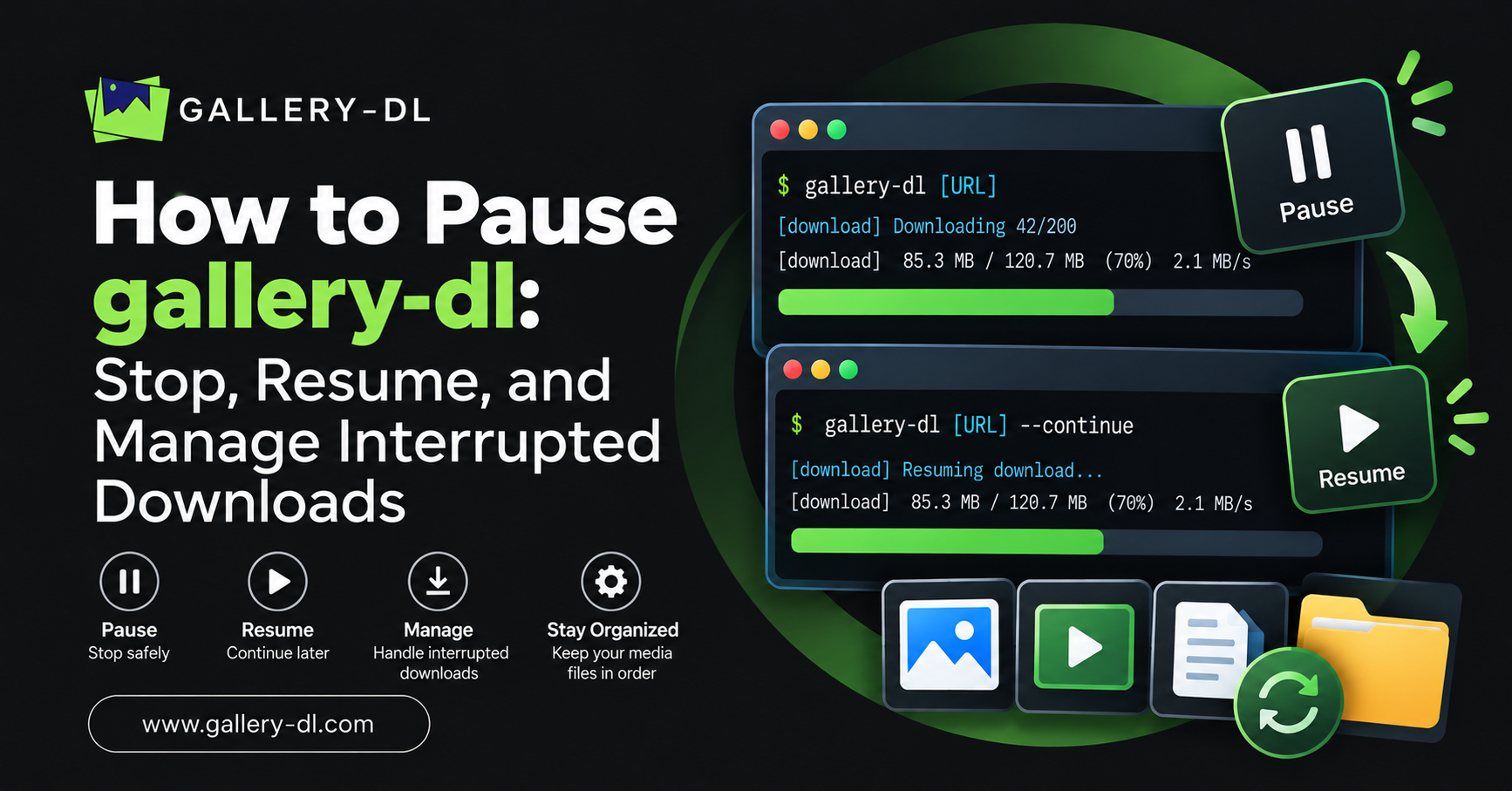
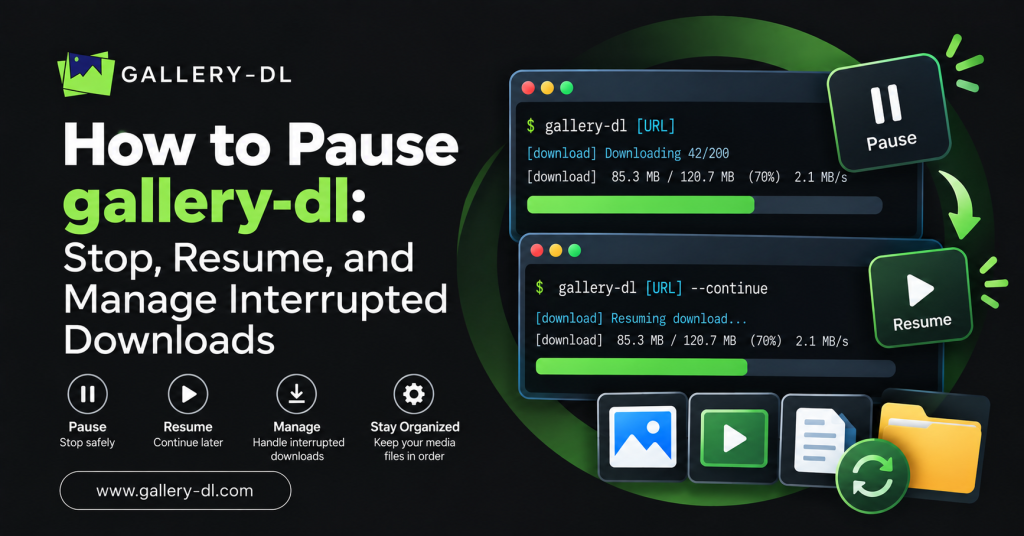
gallery-dl does not have a built-in interactive pause and resume button like a graphical download manager. However, you can safely stop a running download, then start the same command again later. When partial-download handling is enabled, gallery-dl uses .part files and can resume incomplete file downloads where the source server supports resuming.
This guide explains how to pause gallery-dl, how to stop downloads safely, how to resume later without unnecessary duplicates, and how to configure download archives for larger authorized media collections.
Table of Contents
ToggleQuick Answer: How to Pause gallery-dl
To stop a running gallery-dl command, press:
Ctrl + C
When you are ready to continue, run the same gallery-dl command again:
gallery-dl "YOUR_AUTHORIZED_URL"
By default, gallery-dl uses .part files while downloading. These temporary files support resuming incomplete downloads and are renamed after completion.
Does gallery-dl Have a Real Pause Button?
No. gallery-dl is a command-line tool, so it does not provide a universal pause button or download queue interface.
Instead, the normal workflow is:
- Start a gallery-dl command.
- Stop the command when needed.
- Leave completed files and
.partfiles in place. - Run the same command again later.
- Let gallery-dl continue or skip files that are already complete.
For long downloads, this method works well when you use the same output location and do not delete the partial files.
How to Stop gallery-dl Safely
When gallery-dl is running in Command Prompt, PowerShell, Terminal, or another shell, use:
Ctrl + C
This interrupts the active process.
Avoid forcibly shutting down your computer or closing the terminal window while a large file is downloading. A normal terminal interruption is generally the cleaner way to stop the current job.
After stopping gallery-dl, check your download folder. You may see:
- Completed files with their normal filename and extension.
- Incomplete files ending in
.part. - Files that have not started downloading yet.
Do not delete .part files if you want gallery-dl to attempt a later resume.
How gallery-dl Resumes Downloads
gallery-dl uses .part files during downloads by default. The tool writes data to a temporary .part file, then renames it to the final file name when the download finishes successfully. This mode also supports resuming incomplete downloads.
For example, a partially downloaded file may look like:
example-video.mp4.part
When you run the same command again, gallery-dl can detect the partial file and attempt to continue it.
Important Resume Requirements
For the best chance of resuming successfully:
- Use the same gallery-dl command.
- Keep the same output folder.
- Do not rename or delete the
.partfile. - Keep partial downloads on the same drive.
- Ensure the source still allows the requested file.
- Keep gallery-dl updated.
Some websites or servers may not support partial-download resuming. In those cases, gallery-dl may need to restart the affected file.
Resume a Paused gallery-dl Download
To resume, simply repeat your original command.
Example:
gallery-dl "https://example.com/your-authorized-gallery/"
If you originally selected a custom destination folder, use the same folder again:
gallery-dl -D "~/Downloads/gallery-dl" "https://example.com/your-authorized-gallery/"
On Windows:
gallery-dl -D "C:\Users\YourName\Downloads\gallery-dl" "https://example.com/your-authorized-gallery/"
Using a different output directory may prevent gallery-dl from finding the original .part files.
Keep .part Files Enabled
The downloader.*.part option controls whether gallery-dl uses partial files.
The default setting is:
{
  "downloader": {
    "part": true
  }
}
When part is set to true, gallery-dl writes temporary .part files and supports incomplete-download resuming. When it is set to false, gallery-dl writes directly to the final file and loses that resume advantage.
For most users, leaving partial-file support enabled is the best option.
Store Partial Files in a Separate Folder
If you want to keep incomplete downloads separate from completed media, set a part-file directory.
Example:
{
  "downloader": {
    "part-directory": "~/Downloads/gallery-dl-partial"
  }
}
On Windows:
{
  "downloader": {
    "part-directory": "C:\\Users\\YourName\\Downloads\\gallery-dl-partial"
  }
}
gallery-dl supports an alternate part-directory location for .part files and creates missing directories when needed.
This is especially useful when downloading large files and you want your completed-media folder to remain clean.
How to Avoid Duplicate Downloads After Pausing
A simple repeat command can often skip completed files automatically when filenames match. For a more reliable long-term workflow, use a download archive.
A download archive records files that gallery-dl has already downloaded successfully. When you resume or rerun the command, gallery-dl can skip entries already recorded in the archive.
Use this command:
gallery-dl --download-archive "~/Downloads/gallery-dl-archive.txt" "YOUR_AUTHORIZED_URL"
Windows example:
gallery-dl --download-archive "C:\Users\YourName\Downloads\gallery-dl-archive.txt" "YOUR_AUTHORIZED_URL"
gallery-dl documents --download-archive FILE as an option that records successfully downloaded files and skips them during future runs.
Best Command for Large Downloads
For a larger authorized collection, combine a download folder and archive file:
gallery-dl -D "~/Downloads/gallery-dl" --download-archive "~/Downloads/gallery-dl/archive.txt" "YOUR_AUTHORIZED_URL"
This setup gives you three benefits:
- Downloads go into one organized folder.
- Successfully completed files are recorded.
- Future runs are less likely to redownload completed media.
If you need to stop the task, press Ctrl + C and run the same command later.
Slow Down gallery-dl Instead of Pausing It
Sometimes you do not need to stop gallery-dl completely—you only need it to use less bandwidth.
gallery-dl supports a maximum download-rate setting. For example:
{
  "downloader": {
    "rate": "500k"
  }
}
This limits download speed to approximately 500 KB per second.
You can also add a delay between downloads:
{
  "extractor": {
    "sleep": 2
  }
}
This makes gallery-dl wait before starting each download. It can be useful for a slower, more controlled workflow.
gallery-dl supports configurable download rates and delays between downloads.
What Happens If You Close the Terminal?
Closing the terminal window abruptly ends gallery-dl. Completed files should remain in the output folder, while the active file may remain as a .part file.
The safest approach is still to use:
Ctrl + C
Then wait for the command to return control to the terminal before closing the window.
What to Do If gallery-dl Will Not Resume
If gallery-dl does not continue where it stopped, check the following.
Check Whether the .part File Still Exists
Look in the original download folder or your configured part-directory.
If the .part file was deleted, gallery-dl may need to restart that file.
Use the Same Command and Folder
Running a different URL format, changing the filename pattern, or using another destination folder can prevent gallery-dl from matching the partial download.
Update gallery-dl
Use:
python -m pip install -U gallery-dl
An update may improve compatibility with a supported site.
Check Available Disk Space
Large media downloads can fail when the destination drive is full. Make sure there is enough free space before restarting.
Confirm the Media Is Still Available
A source file may have been removed, renamed, restricted, or changed since the first attempt. Only retry content you are legitimately allowed to access.
Common Mistakes When Pausing gallery-dl
Avoid these mistakes:
- Deleting
.partfiles before resuming. - Changing the output folder between runs.
- Using a different filename configuration after stopping.
- Running several duplicate commands at the same time.
- Restarting without a download archive for large collections.
- Force-closing the computer during a write operation.
- Downloading content you do not own or have permission to archive.
FAQ: How to Pause gallery-dl
Can I pause gallery-dl with a keyboard shortcut?
gallery-dl does not have a universal interactive pause command. To stop the current command, use:Ctrl + C
Then rerun the same command later.
Will gallery-dl resume after Ctrl + C?
It can resume incomplete downloads when .part files are kept and the source supports resuming. Partial-file handling is enabled by default.
Should I delete .part files?
No, not if you want to resume. Keep .part files until you either complete the download or decide that you no longer need it.
How do I stop gallery-dl from downloading duplicate files?
gallery-dl –download-archive “archive.txt” “YOUR_AUTHORIZED_URL”
Conclusion
gallery-dl does not use a traditional pause button, but you can stop it with Ctrl + C and resume later by running the same command. Keep .part files enabled, use the same download directory, and create a download archive for larger projects.
For a reliable Gallery-DL workflow, begin with one authorized URL, keep partial files intact, use a dedicated download folder, and respect creator rights and platform rules.
latest post
- Domain Lookup: How to Check Domain Availability, Ownership, and Details
- How to Pause gallery-dl: Stop, Resume, and Manage Interrupted Downloads
- How to Use gallery-dl GitHub: Install, Update, and Run gallery-dl from the Official Project
- How to Use gallery-dl for Bunkr: Download Public and Authorized Files Safely
- How to Use gallery-dl for Flickr: Download Photos, Albums, and Your Authorized Media