How to use Gallery-DL is a common question among users who want to download images and videos from different websites. Many beginners struggle with installation, command-line tools, unsupported URLs, and download errors when saving online media.
Gallery-DL is a free tool that helps users download images, videos, and galleries from supported websites. This guide explains how to install Gallery-DL, download media files, manage download locations, and fix common errors.
Table of Contents
ToggleWhat Is Gallery-DL and How Does It Work?
Gallery-DL is a free, open-source command-line tool designed to download images, videos, and media galleries from supported websites. It works on Windows, macOS, and Linux and allows users to save multiple files using simple commands.
Gallery-DL works by processing a website URL and extracting available media links. It then downloads the supported files to your computer. Users can also customize download folders, save metadata, and use browser cookies for content they are authorized to access.
What Can You Download Using Gallery-DL?
Gallery-DL allows users to download different types of media from supported websites. It works with image galleries, social media platforms, and websites that provide downloadable photos or videos. The available content depends on the website and Gallery-DL’s compatibility.
Here are the main types of content you can download using Gallery-DL:
- Images: Download photos and pictures from supported websites.
- Videos: Save videos from compatible platforms.
- Photo Galleries: Download multiple images from galleries and albums.
- Social Media Posts: Save accessible media from supported social media websites.
- Metadata and Captions: Download available post details, descriptions, and captions.
- Multiple Files: Download several images or videos using supported URLs.
Gallery-DL also supports batch downloads, allowing users to save multiple files without downloading each one manually. However, some websites may require authentication or restrict access to certain content.
Requirements Before Using Gallery-DL
Before using Gallery-DL, make sure your computer meets the basic requirements. You need a compatible operating system, an internet connection, and the necessary software to download media files successfully.
Here are the main requirements:
- Compatible Device: Use a Windows, macOS, or Linux computer.
- Gallery-DL: Install the latest compatible version from the official source.
- Python: Install a supported Python version if using the Python package.
- Internet Connection: Use a stable connection for uninterrupted downloads.
- Media URL: Prepare a valid image, video, or gallery link.
- Browser Cookies: Use authorized cookies if a website requires authentication.
- Storage Space: Make sure your computer has enough free space.
- Content Permission: Download content you own or have permission to save.
After preparing these requirements, check that Gallery-DL is installed correctly and your media URL is supported. Keep your login information private and follow website rules when downloading content.
How to Install Gallery-DL on Windows, Mac, and Linux
Installing Gallery-DL on Windows, macOS, and Linux is simple if you have Python and pip installed. The tool runs through Command Prompt or Terminal and allows you to download media from supported websites.
Follow these steps to install Gallery-DL:
- Install Python: Download and install a compatible Python version from the official Python website.
- Open Terminal: Launch Command Prompt on Windows or Terminal on Mac and Linux.
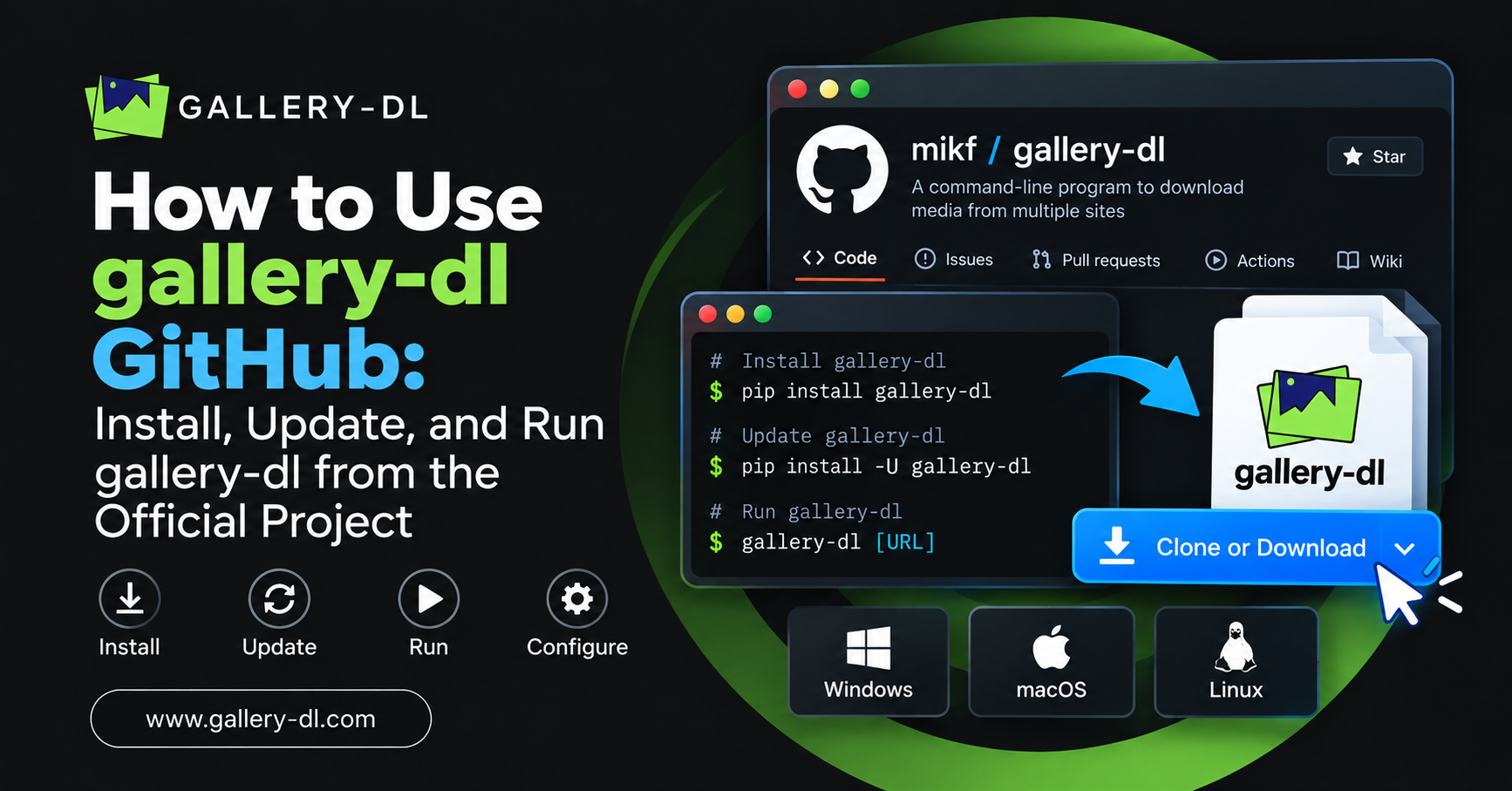
- Install Gallery-DL: Enter the following command:
python -m pip install -U gallery-dl - Verify Installation: Check whether Gallery-DL is installed using:
gallery-dl --version - Check Available Commands: Run
gallery-dl --helpto view the supported options.
After installation, Gallery-DL is ready to use. If the command is not recognized, check your Python installation and PATH settings. You can also update Gallery-DL using the same installation command.
How to Use Gallery-DL to Download Images and Videos
Using Gallery-DL to download images and videos requires a valid URL from a supported website. The tool automatically processes the link and saves available media files to your computer.
Follow these steps to download media using Gallery-DL:
- Open a Website: Visit a website supported by Gallery-DL.
- Copy Media URL: Copy the link to the image, video, or gallery.
- Open Terminal: Launch Command Prompt or Terminal.
- Enter Download Command: Type the following command:
gallery-dl "URL" - Replace URL: Enter your actual media link between the quotation marks.
- Start Download: Press Enter to begin downloading.
- Find Downloaded Files: Open the Gallery-DL download folder to view saved media.
After downloading, open the saved files to confirm they are complete. Some websites may require login authentication or additional settings. If a download fails, check whether Gallery-DL supports the URL and update the tool if necessary.
How to Download Multiple Files with Gallery-DL
Gallery-DL allows users to download multiple images and videos from supported websites using batch downloads. This feature saves time by processing several URLs automatically instead of downloading each file separately.
Follow these steps to download multiple files with Gallery-DL:
- Collect URLs: Copy the links to the images, videos, or galleries you want to download.
- Create a Text File: Open Notepad or another text editor.
- Add Links: Paste each URL on a separate line.
- Save File: Save the document as
urls.txt. - Open Terminal: Launch Command Prompt or Terminal.
- Run Command: Enter the following command:
gallery-dl -i urls.txt - Check Downloads: Open the download folder to view your saved files.
After downloading, check whether all files were saved successfully. If some downloads fail, verify the URLs and internet connection. Certain websites may require authentication or limit repeated requests.
How to Change the Download Location in Gallery-DL
Changing the download location in Gallery-DL helps you organize images and videos in your preferred folders. By default, Gallery-DL saves files according to its configuration, but you can choose a custom destination using a command.
Follow these steps to change the download location:
- Create a Folder: Make a new folder where you want to save downloaded media.
- Open Terminal: Launch Command Prompt or Terminal.
- Choose Destination: Use the
--destinationoption to specify a folder. - Enter Command: Run the following example:
gallery-dl --destination "C:\Downloads\Gallery" "URL" - Replace URL: Enter the actual media or gallery link.
- Start Download: Press Enter to download the files.
- Check Folder: Open your selected destination to find the downloaded content.
After completing these steps, Gallery-DL will save the files under your selected destination, following any configured subfolders. You can also set a permanent download location in the Gallery-DL configuration file for future downloads.
How to Fix Gallery-DL Not Working
Gallery-DL may stop working because of outdated software, unsupported URLs, authentication errors, or incorrect commands. Users may experience failed downloads, missing files, or problems accessing media from supported websites.
To fix these issues, update Gallery-DL using python -m pip install -U gallery-dl and check your internet connection. Make sure the URL is correct and supported by the tool. If a website requires login, use authorized browser cookies. Restart the download and check for error messages if the problem continues.
Tips for Using Gallery-DL Safely
Using Gallery-DL safely helps protect your computer, personal information, and downloaded files. Following basic safety practices can also reduce download errors and prevent account-related problems.
Here are some useful tips for using Gallery-DL safely:
- Use Official Sources: Download Gallery-DL from its official GitHub repository.
- Keep Software Updated: Install the latest compatible version to fix bugs and improve website support.
- Respect Copyright: Download images and videos you own or have permission to save.
- Protect Login Information: Never share passwords, session cookies, or account details.
- Avoid Excessive Downloads: Limit repeated requests to reduce temporary website restrictions.
- Organize Media Files: Store downloaded images and videos in separate folders.
- Check Downloaded Files: Verify that saved files are complete and accessible.
Always follow website rules and respect content creators when downloading media. Avoid downloading unknown or suspicious files, and keep your system security software updated for safer use.
Frequently Asked Questions (FAQs)
Here are some common questions about using Gallery-DL. These answers cover installation, video downloads, batch downloading, troubleshooting, and safety.
1. How do I use Gallery-DL for beginners?
Install Gallery-DL using Python and pip. Open Command Prompt or Terminal, enter gallery-dl "URL", and replace URL with a supported media link to start downloading.
2. Can Gallery-DL download videos?
Yes, Gallery-DL can download videos from supported websites. However, video availability depends on the platform, file format, and access restrictions.
3. How do I download multiple images using Gallery-DL?
Save multiple image or gallery URLs in a text file named urls.txt. Run gallery-dl -i urls.txt to download available images automatically.
4. Why is Gallery-DL not working?
Gallery-DL may fail because of outdated software, unsupported URLs, authentication errors, or internet connection problems. Update the tool and check your download commands.
5. Is Gallery-DL free and safe to use?
Yes, Gallery-DL is a free, open-source tool. It is generally safe when downloaded from its official repository. Always protect your login details and respect website rules.