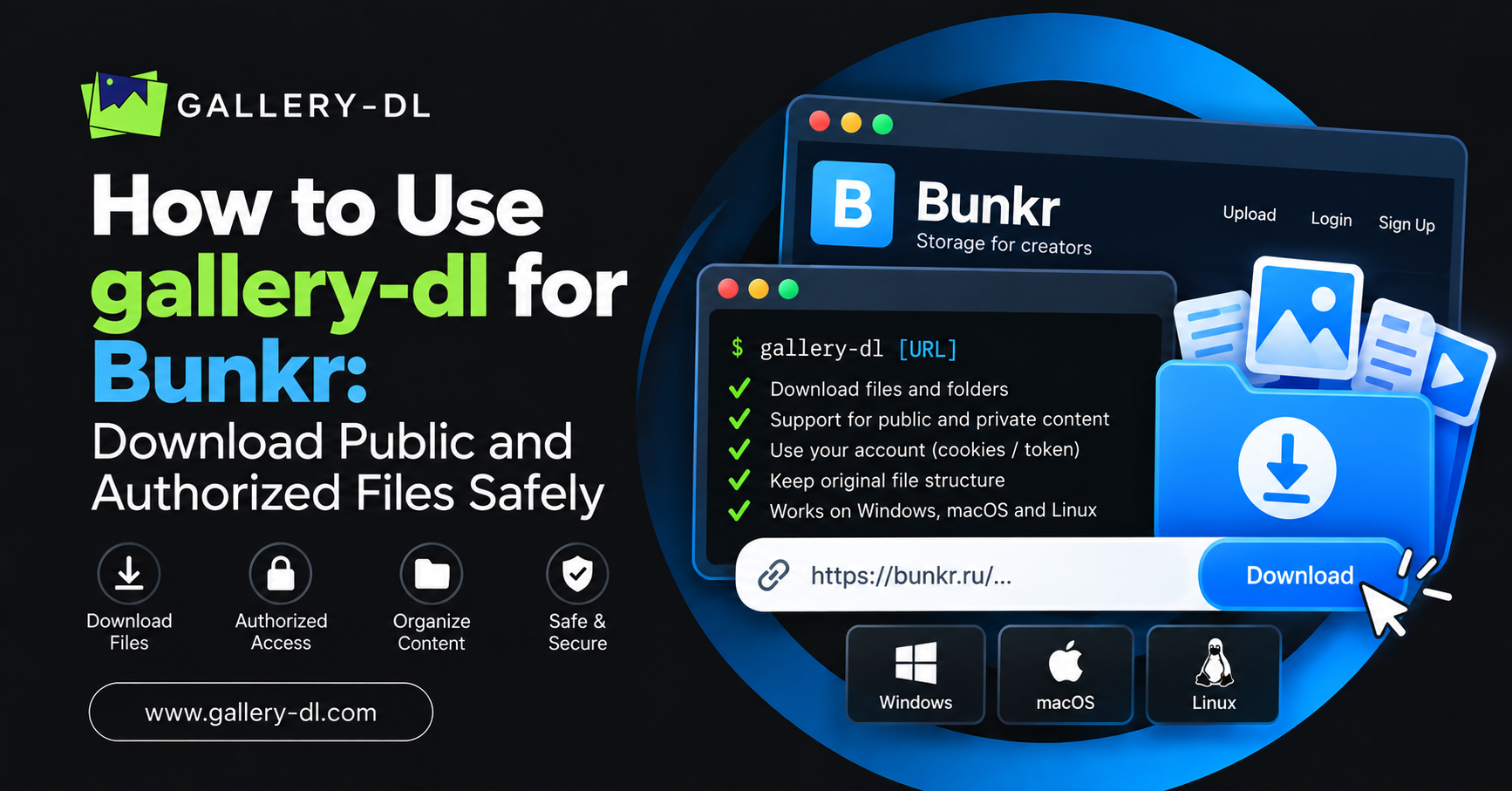
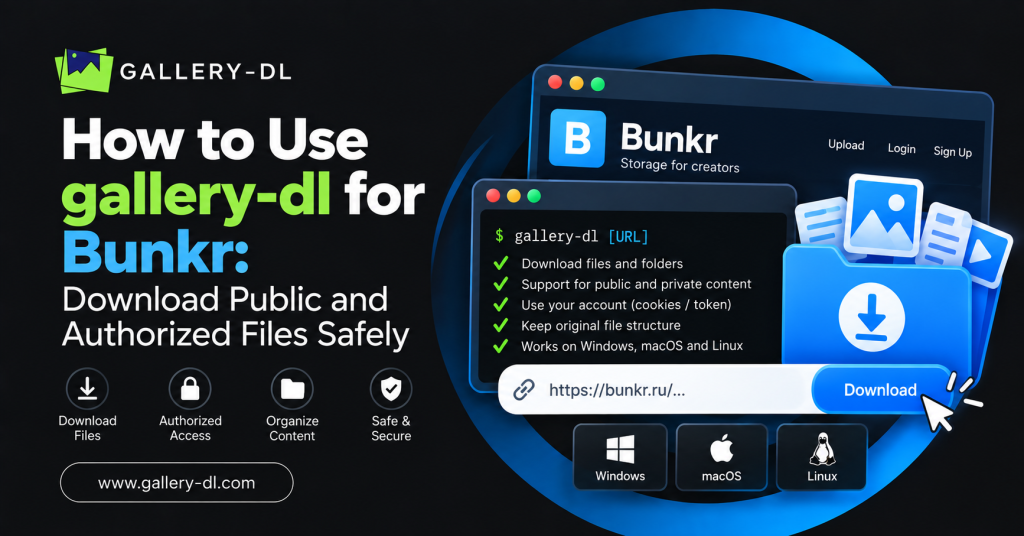
gallery-dl can process supported media pages from a command line. If you are searching for how to use gallery-dl Bunkr, the correct workflow is to first verify that your installed gallery-dl version supports the exact public Bunkr URL format you have, then test it with a single file or album you own or are explicitly allowed to archive.
Do not use gallery-dl to bypass private links, passwords, paid access, account requirements, creator restrictions, or other security controls.
Table of Contents
ToggleQuick Answer: How to Use gallery-dl Bunkr
First, update gallery-dl:
python -m pip install -U gallery-dl
Then test a public, authorized Bunkr URL:
gallery-dl "YOUR_PUBLIC_OR_AUTHORIZED_BUNKR_URL"
If gallery-dl recognizes the URL format, it will select the relevant extractor and begin processing available media. Start with one approved link before trying a larger collection.
What Is gallery-dl?
gallery-dl is an open-source command-line tool for downloading image galleries and media collections from supported websites. You provide a URL, and gallery-dl checks whether a compatible extractor can process that page.
The standard command format is:
gallery-dl [OPTIONS]... URLS...
gallery-dl is useful for personal backups, project archives, and other lawful media-management tasks. It does not grant any additional access rights.
Before Using gallery-dl with Bunkr
Before you run a Bunkr download command, confirm these points:
- You own the files or have clear permission from the rights holder.
- The link is publicly accessible or explicitly shared with you for downloading.
- The content is not protected by a password, subscription, payment wall, or creator restriction.
- You will not redistribute the files without permission.
- You are using the complete original URL, not an incomplete or altered link.
These checks protect your account, respect creator rights, and reduce avoidable errors.
Step 1: Install or Update gallery-dl
Install gallery-dl with pip:
python -m pip install -U gallery-dl
Windows users can use:
py -m pip install -U gallery-dl
Then verify that gallery-dl is installed:
gallery-dl --version
Keeping gallery-dl updated is important because websites can change their URLs, page layouts, or supported media delivery methods.
Step 2: Check Whether Your gallery-dl Version Supports Bunkr
Support can vary by gallery-dl version and by the exact URL format. Check available extractors with:
gallery-dl --list-extractors
On Windows, you can filter the results:
gallery-dl --list-extractors | findstr /i bunkr
On macOS or Linux:
gallery-dl --list-extractors | grep -i bunkr
If no relevant extractor appears, do not rely on an old tutorial or a random third-party script. Update gallery-dl and check the official project documentation or current supported-sites information.
Step 3: Run gallery-dl with a Public Bunkr URL
Copy the full URL for media you are authorized to download, then run:
gallery-dl "YOUR_PUBLIC_OR_AUTHORIZED_BUNKR_URL"
For example, use this structure:
gallery-dl "https://example-bunkr-domain.example/your-approved-album/"
The sample URL is intentionally generic. Replace it only with a real link that you have permission to archive.
When the link is supported, gallery-dl will begin retrieving the page metadata and available media files.
Step 4: Choose a Download Folder
By default, gallery-dl saves files according to its configuration. To choose a folder for one task, add the -D option.
macOS and Linux
gallery-dl -D "~/Downloads/gallery-dl-bunkr" "YOUR_AUTHORIZED_BUNKR_URL"
Windows
gallery-dl -D "C:\Users\YourName\Downloads\gallery-dl-bunkr" "YOUR_AUTHORIZED_BUNKR_URL"
A dedicated folder helps separate your approved Bunkr archive from other downloads.
Step 5: Use a Download Archive to Avoid Duplicates
If you need to rerun the same authorized download later, use a download archive.
gallery-dl --download-archive "archive.txt" "YOUR_AUTHORIZED_BUNKR_URL"
A download archive records successfully downloaded files and skips them during later runs.
For a more organized workflow:
gallery-dl -D "~/Downloads/gallery-dl-bunkr" --download-archive "~/Downloads/gallery-dl-bunkr/archive.txt" "YOUR_AUTHORIZED_BUNKR_URL"
This approach is useful for your own large collections because it reduces repeated downloads after interruptions.
Step 6: Resume an Interrupted Download
If you need to stop gallery-dl, press:
Ctrl + C
Later, run the same command again. gallery-dl uses .part files by default during file downloads. These temporary files help with incomplete-download resuming where supported by the source.
To improve your chance of resuming:
- Use the same URL.
- Use the same destination folder.
- Do not delete
.partfiles. - Do not rename the partial files.
- Keep sufficient free disk space.
How to Set a Default Bunkr Download Folder
If you regularly archive your own approved files, set a default gallery-dl folder in the JSON configuration:
{
  "extractor": {
    "base-directory": "~/Downloads/gallery-dl"
  }
}
On Windows:
{
  "extractor": {
    "base-directory": "C:\\Users\\YourName\\Downloads\\gallery-dl"
  }
}
gallery-dl uses JSON configuration files and supports a configurable base directory for downloads.
Create or open the configuration file with:
gallery-dl --config-create
gallery-dl --config-open
Common gallery-dl Bunkr Errors and Fixes
gallery-dl says no extractor was found
This usually means that your current gallery-dl version does not support that URL format, the URL is incomplete, or the relevant page structure has changed.
Try these steps:
- Update gallery-dl.
- Copy the original full URL again.
- Test one public, authorized page.
- Check
gallery-dl --list-extractors. - Review the current official project documentation.
The link requires a password or sign-in
Do not try to bypass the requirement. Use the official access method, ask the owner for a downloadable copy, or request permission.
Some files are missing
The files may no longer be available, may not be publicly accessible, or may not be supported by the relevant extractor. Confirm that the source page is still available to your account through normal permitted access.
Files are downloading into the wrong location
Use the -D option or define base-directory in your gallery-dl configuration.
The download stopped halfway
Keep any .part files and rerun the same command. If the source supports resuming, gallery-dl may continue the incomplete file.
Best Practices for gallery-dl Bunkr Downloads
Use these habits for a responsible workflow:
- Download only files you own or have permission to save.
- Test one link before processing a large folder.
- Keep gallery-dl updated.
- Use a dedicated download directory.
- Use a download archive for repeated runs.
- Preserve
.partfiles if a download is interrupted. - Never share account cookies, passwords, or tokens.
- Do not bypass passwords, private links, subscriptions, or access restrictions.
- Keep source links and permission records for professional archives.
FAQ: How to Use gallery-dl Bunkr
Does gallery-dl support Bunkr?
Support depends on the current gallery-dl version and the Bunkr URL type. Check your installation with:gallery-dl --list-extractors
What is the basic gallery-dl Bunkr command?
gallery-dl “YOUR_AUTHORIZED_BUNKR_URL”
Can I download a private or password-protected Bunkr link?
Only use official access methods and download options when you are explicitly authorized. Do not attempt to bypass private or password-protected access.
How do I resume a stopped gallery-dl download?
Press Ctrl + C to stop it, then run the same command again later. Keep .part files in place.
How do I prevent duplicate downloads?
Use a download archive:gallery-dl --download-archive "archive.txt" "YOUR_AUTHORIZED_BUNKR_URL"
Conclusion
To use gallery-dl for Bunkr, update the tool, verify that your version supports the exact URL format, and test a single public or authorized link. Use a dedicated folder, keep partial files for resume support, and add a download archive for larger approved collections.
Use Gallery-DL responsibly: respect file ownership, avoid restricted content, and never expose account credentials or private session data.
latest post
- Domain Lookup: How to Check Domain Availability, Ownership, and Details
- How to Pause gallery-dl: Stop, Resume, and Manage Interrupted Downloads
- How to Use gallery-dl GitHub: Install, Update, and Run gallery-dl from the Official Project
- How to Use gallery-dl for Bunkr: Download Public and Authorized Files Safely
- How to Use gallery-dl for Flickr: Download Photos, Albums, and Your Authorized Media