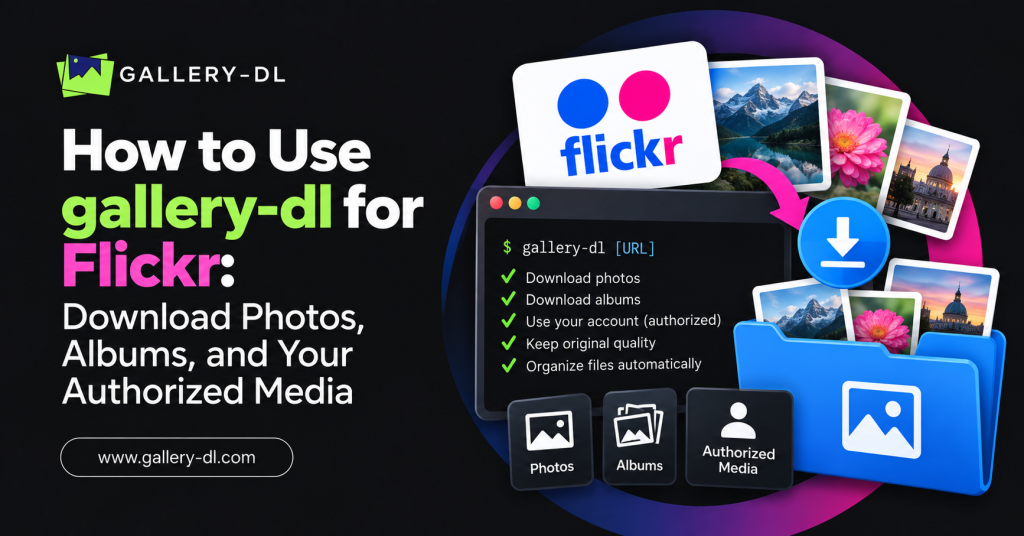
gallery-dl is a command-line tool that can help you download media from supported Flickr pages. It is useful for backing up your own Flickr photos, organizing licensed images, or saving public content when the photographer has given permission.
This guide explains how to use gallery-dl for Flickr, including installation, public Flickr URLs, download folders, image-size settings, metadata, authorized account setup, and troubleshooting.
Download only photos and videos you own, have permission to save, or are licensed to use. Do not use gallery-dl to bypass private photo settings, creator restrictions, passwords, or other access controls.
Table of Contents
ToggleQuick Answer: How to Use gallery-dl for Flickr
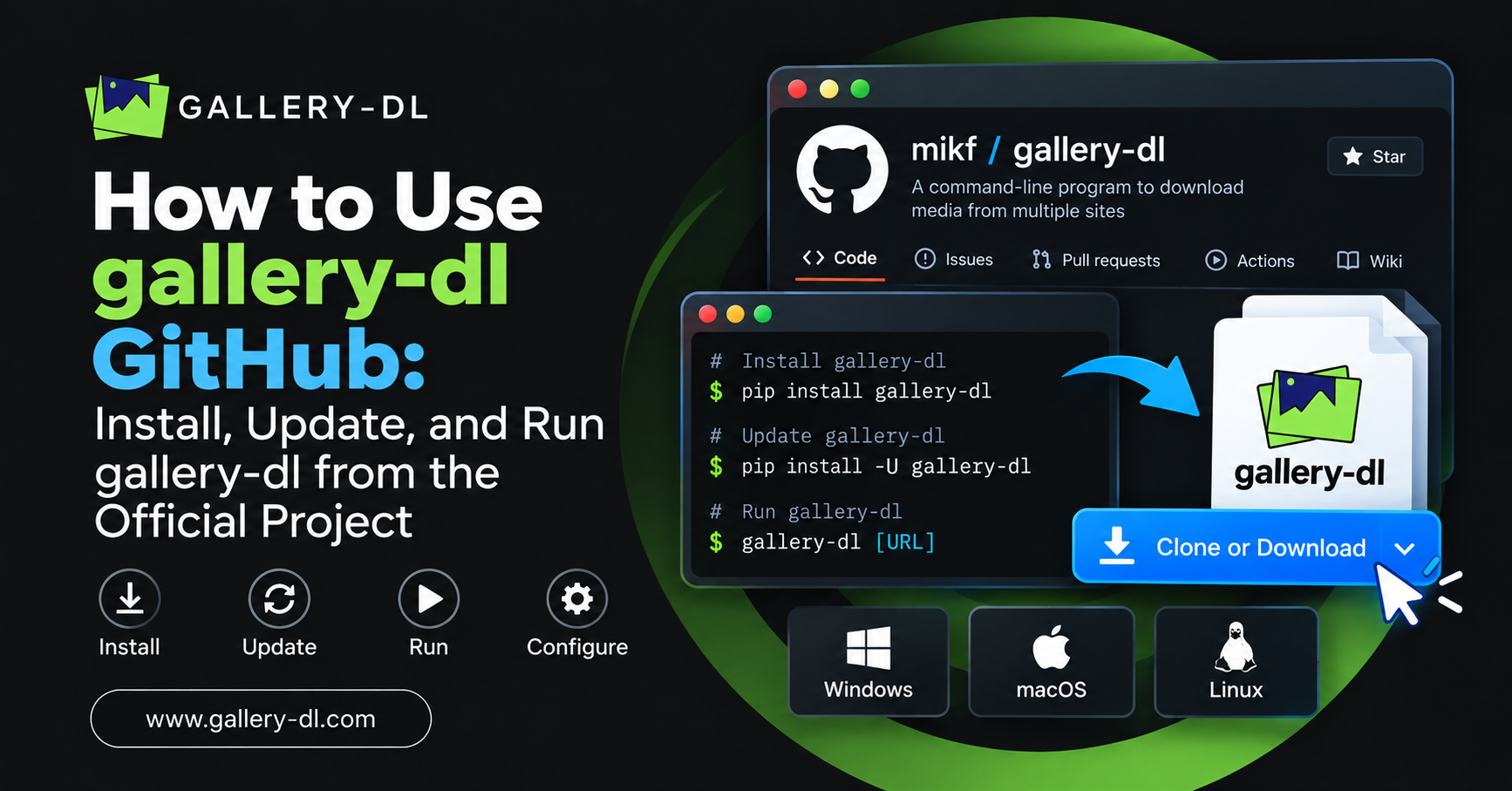
Install or update gallery-dl:
python -m pip install -U gallery-dl
Then run it with a public or authorized Flickr URL:
gallery-dl "YOUR_FLICKR_URL"
To save files in a specific folder:
gallery-dl -D "~/Downloads/flickr" "YOUR_FLICKR_URL"
gallery-dl identifies the supported page from the URL and extracts available media.
What Is gallery-dl for Flickr?
gallery-dl is a command-line downloader for supported image galleries and collections. For Flickr workflows, it can be helpful when you want to organize approved photos from a photostream, album, collection, or individual photo page.
You do not need to manually save images one by one in a browser. Instead, copy a supported Flickr URL and pass it to gallery-dl.
The basic gallery-dl syntax is:
gallery-dl [OPTIONS]... URLS...
Before Downloading Flickr Photos
Before you use gallery-dl for Flickr, confirm that your download is legitimate.
You should only download:
- Photos you uploaded yourself.
- Images covered by a license that permits downloading and reuse.
- Photos where the photographer gave you direct permission.
- Media required for an approved client, research, or archival project.
- Public files made available for lawful saving under Flickr and creator rules.
Avoid downloading or republishing images simply because they are visible online. Copyright and license terms still apply.
Step 1: Install gallery-dl
Install gallery-dl with Python and pip:
python -m pip install -U gallery-dl
On Windows, you can use:
py -m pip install -U gallery-dl
Then verify the installation:
gallery-dl --version
If a version number appears, gallery-dl is ready to use.
Step 2: Copy the Correct Flickr URL
Open the Flickr page containing the authorized media and copy the complete URL from your browser.
Useful starting points include:
- An individual photo page.
- Your own public Flickr photostream.
- A public album you created or have permission to archive.
- A public collection or page containing appropriately licensed media.
Use the original page URL rather than a shortened, partial, or image-CDN link whenever possible.
Step 3: Download a Flickr Photo or Album
Run gallery-dl with the full Flickr URL:
gallery-dl "YOUR_FLICKR_URL"
Example format:
gallery-dl "https://www.flickr.com/photos/example-user/"
Replace the sample URL with a real Flickr page that you own or are authorized to download.
For a one-time download, this is often all you need.
Step 4: Choose a Flickr Download Folder
Use the -D option to choose where gallery-dl saves the files.
macOS or Linux
gallery-dl -D "~/Downloads/flickr" "YOUR_FLICKR_URL"
Windows
gallery-dl -D "C:\Users\YourName\Downloads\flickr" "YOUR_FLICKR_URL"
A dedicated Flickr folder helps you keep photo archives organized by project, client, creator, or date.
How to Set a Default Flickr Download Location
If you use gallery-dl for Flickr frequently, add a default folder in the gallery-dl JSON configuration file:
{
  "extractor": {
    "base-directory": "~/Downloads/gallery-dl"
  }
}
You can also apply a folder specifically to Flickr:
{
  "extractor": {
    "flickr": {
      "base-directory": "~/Downloads/flickr"
    }
  }
}
On Windows, use double backslashes:
{
  "extractor": {
    "flickr": {
      "base-directory": "C:\\Users\\YourName\\Downloads\\flickr"
    }
  }
}
gallery-dl uses JSON-based configuration and supports general or site-specific extractor settings.
How to Download Flickr Photos in a Specific Size
gallery-dl includes the extractor.flickr.size-max setting. This controls the largest image size that gallery-dl is allowed to download.
For example:
{
  "extractor": {
    "flickr": {
      "size-max": "Large"
    }
  }
}
You can also use a maximum pixel dimension:
{
  "extractor": {
    "flickr": {
      "size-max": 2048
    }
  }
}
The Flickr size-max option accepts either a maximum image dimension or Flickr’s supported size specifiers, such as Original or Large.
Why Limit Flickr Image Size?
Choosing a reasonable image size can help you:
- Save disk space.
- Reduce download time.
- Match a project’s size requirements.
- Avoid collecting larger files than you need.
- Keep your approved archive manageable.
Always respect the creator’s licensing terms, regardless of image size.
How to Download Flickr Metadata with gallery-dl
Metadata can be valuable when you are archiving your own work, maintaining photo credits, or documenting licensed images.
gallery-dl can retrieve additional Flickr metadata, including options such as:
- License information.
- Date taken.
- Original format.
- Last update date.
- Geographic data.
- Machine tags.
- Original dimensions.
Example configuration:
{
  "extractor": {
    "flickr": {
      "metadata": "license,date_taken,original_format,last_update"
    }
  }
}
gallery-dl documents the Flickr metadata option and its available extra metadata fields.
How to Include Flickr EXIF Information
EXIF metadata can include camera and photo-information fields. If you need it for your own photos or an authorized archival project, add:
{
  "extractor": {
    "flickr": {
      "exif": true
    }
  }
}
gallery-dl notes that Flickr EXIF extraction requires an additional API call for each photo.
Use EXIF data responsibly. It can contain sensitive information, including device details or location data.
How to Download Flickr Videos
gallery-dl’s Flickr extractor includes video downloading by default.
To make the setting explicit:
{
  "extractor": {
    "flickr": {
      "videos": true
    }
  }
}
If you only need photos and do not want video files in your archive:
{
  "extractor": {
    "flickr": {
      "videos": false
    }
  }
}
The official configuration lists Flickr video extraction as enabled by default.
How to Use Your Own Flickr Account with gallery-dl
For basic public Flickr pages, you may not need to authenticate. For account-related, authorized workflows, gallery-dl supports Flickr access tokens and access-token secrets linked through your own Flickr account.
The relevant configuration keys are:
extractor.flickr.access-token
extractor.flickr.access-token-secret
gallery-dl documents these as values obtained by linking your Flickr account to gallery-dl.
Never copy tokens from another person, post them online, or place them in a public configuration file. Tokens are sensitive account credentials.
How to Create Your Own Flickr API Key
If your authorized gallery-dl setup requires a custom Flickr API key, create it through Flickr’s official App Garden using your own account.
The gallery-dl documentation describes this workflow:
- Log in to Flickr.
- Create an app through Flickr App Garden.
- Apply for a non-commercial key where appropriate.
- Copy your API key and API secret.
- Add them to your local gallery-dl configuration.
The configuration keys are:
extractor.flickr.api-key
extractor.flickr.api-secret
Keep your API secret private. Do not upload it to GitHub, share it in screenshots, or send it to untrusted tools.
Prevent Duplicate Flickr Downloads
If you are archiving a large set of your own or licensed Flickr images, use a download archive.
gallery-dl --download-archive "flickr-archive.txt" "YOUR_FLICKR_URL"
This records successfully downloaded files and skips them in future runs.
For a more organized command:
gallery-dl -D "~/Downloads/flickr" --download-archive "~/Downloads/flickr/archive.txt" "YOUR_FLICKR_URL"
A download archive is especially helpful if you need to run the same backup command more than once.
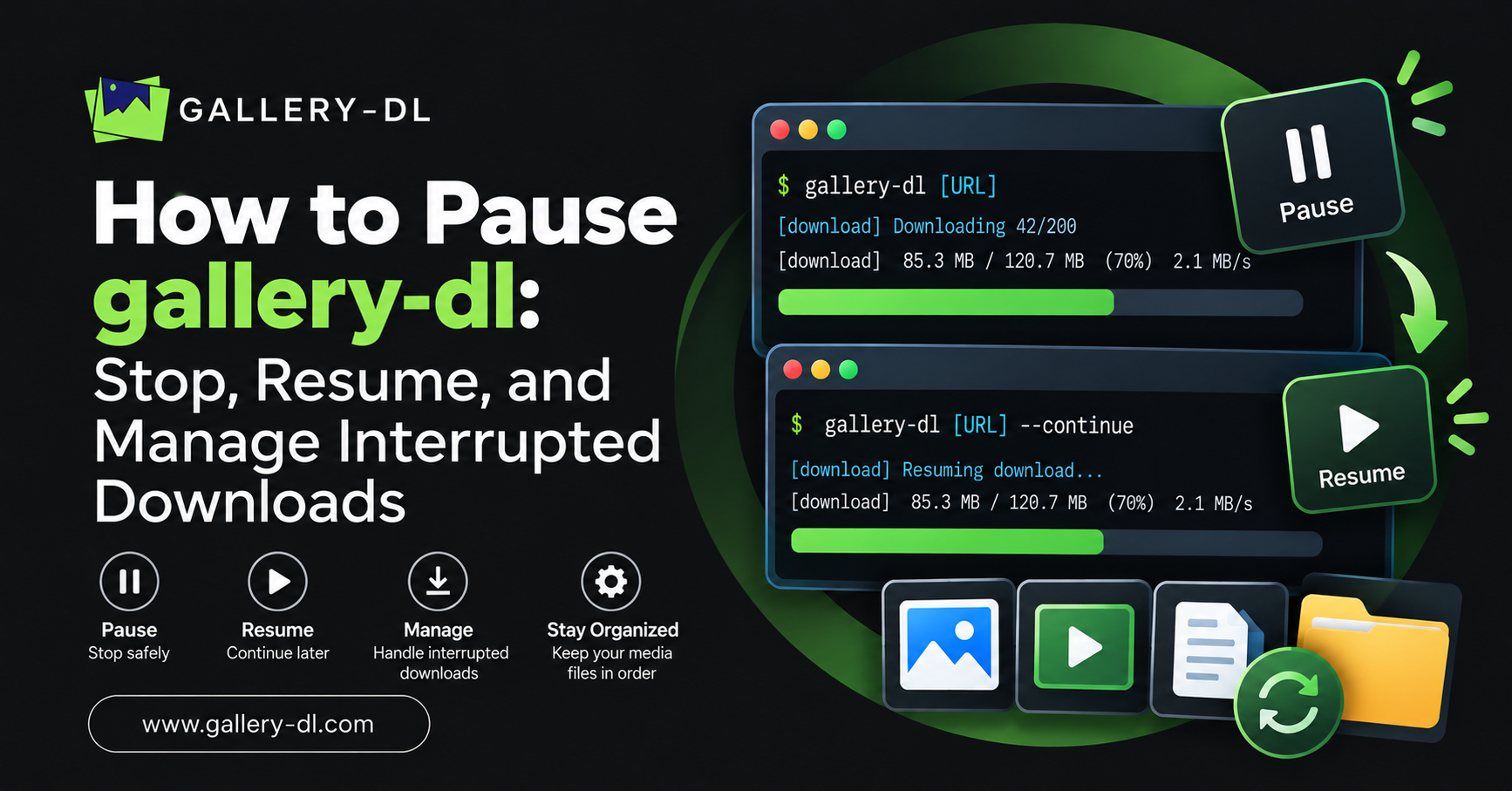
Resume an Interrupted Flickr Download
If you need to stop gallery-dl, press:
Ctrl + C
When you are ready, repeat the same command.
gallery-dl uses .part files by default during downloads. These temporary files can support resuming incomplete downloads when the source allows it.
To improve resume reliability:
- Use the same Flickr URL.
- Keep the same destination folder.
- Leave
.partfiles in place. - Keep enough disk space free.
- Use a download archive for large collections.
Common gallery-dl Flickr Errors and Fixes
“No extractor found”
Check that you copied a complete Flickr page URL. Then update gallery-dl:
python -m pip install -U gallery-dl
Photos download in the wrong size
Set size-max in your Flickr configuration. Use Large, Original, or a pixel limit based on your approved project needs.
Metadata is missing
Enable the metadata or EXIF settings in your configuration. Remember that extra metadata may require additional API requests.
Authentication is not working
Confirm that you are using only credentials from your own Flickr account. Recheck your API key, API secret, access token, and access-token secret. Never attempt to bypass private content settings.
Files are downloading twice
Use the --download-archive option to record completed files and skip them during later downloads.
Best Practices for gallery-dl Flickr Downloads
Use these practices to keep your Flickr workflow organized and respectful:
- Download only your own, licensed, or explicitly authorized photos.
- Keep attribution and source URLs for images you did not create.
- Review the Flickr license before reuse.
- Use a dedicated download folder.
- Enable metadata when credit and license information matters.
- Limit image size when full resolution is unnecessary.
- Use a download archive for recurring backups.
- Protect your API keys and access tokens.
- Never bypass private-photo settings or creator restrictions.
FAQ: How to Use gallery-dl for Flickr
What is the basic gallery-dl Flickr command?
gallery-dl “YOUR_FLICKR_URL”
Can I download a Flickr album with gallery-dl?
You can test a public or authorized Flickr album URL with gallery-dl. Always ensure you have the right to download and use the photos.
How do I choose image quality in gallery-dl for Flickr?
Set extractor.flickr.size-max to a Flickr size name such as Large or Original, or use a maximum pixel dimension.
Does gallery-dl download Flickr videos?
Yes. Flickr video extraction is enabled by default, and you can disable it through the videos configuration setting.
Do I need a Flickr token?
Not always. Many public pages may work without authentication. For account-based, authorized access, use only your own Flickr tokens and API credentials.
Conclusion
To use gallery-dl for Flickr, install or update gallery-dl, copy a public or authorized Flickr URL, and run the command in your terminal. For a more organized workflow, choose a dedicated folder, set an appropriate image-size limit, keep photo metadata, and use a download archive to avoid duplicates.
Use Gallery-DL responsibly: respect Flickr licenses, protect account credentials, and download only photos and videos you have permission to save.
latest post
- Domain Lookup: How to Check Domain Availability, Ownership, and Details
- How to Pause gallery-dl: Stop, Resume, and Manage Interrupted Downloads
- How to Use gallery-dl GitHub: Install, Update, and Run gallery-dl from the Official Project
- How to Use gallery-dl for Bunkr: Download Public and Authorized Files Safely
- How to Use gallery-dl for Flickr: Download Photos, Albums, and Your Authorized Media