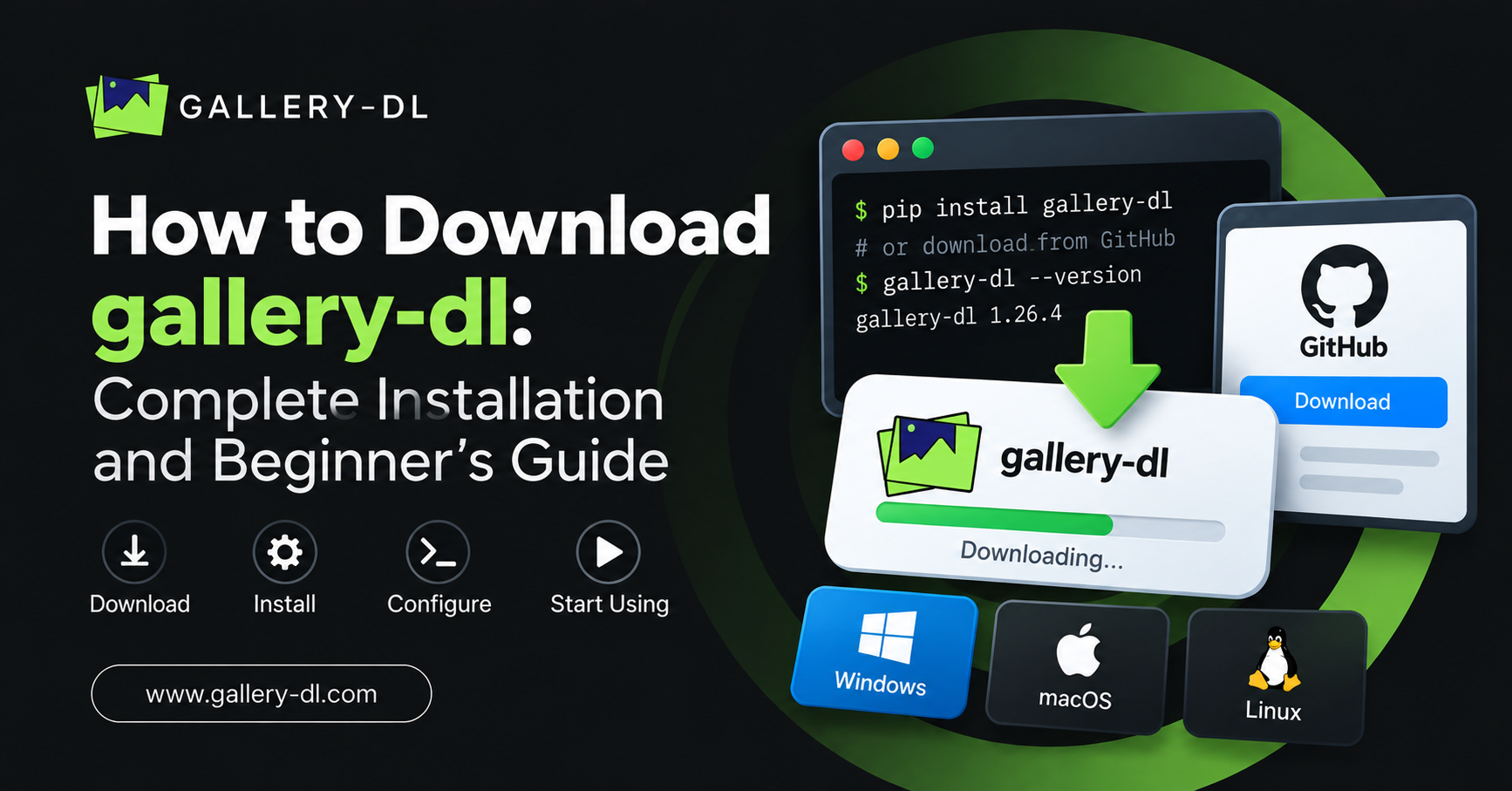
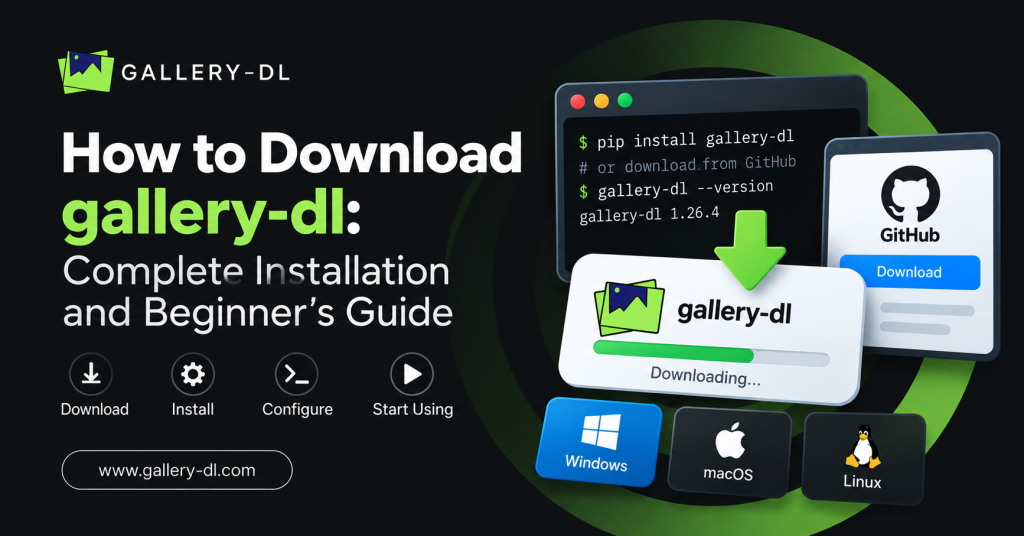
gallery-dl is a command-line tool that downloads image galleries and media collections from supported websites. If you are looking for how to download gallery-dl, this guide explains how to install it on Windows, macOS, and Linux, verify the installation, run your first command, choose a download folder, update the tool, and fix common errors.
Use gallery-dl only for content you own or are authorized to save. Respect platform rules, creator rights, privacy settings, and copyright law.
Table of Contents
ToggleQuick Answer: How to Download gallery-dl
The most common installation command is:
python -m pip install -U gallery-dl
On Windows, you can also use:
py -m pip install -U gallery-dl
After installation, check that it works:
gallery-dl --version
Then download from a supported public or authorized URL:
gallery-dl "https://example.com/page-url"
gallery-dl is an open-source command-line program for downloading image galleries and collections. Its official installation options include pip, Homebrew, Snap, Chocolatey, and Scoop.
What Is gallery-dl?
gallery-dl is a media-downloading tool that works from the command line. Instead of manually saving files one at a time, you paste a supported webpage URL into a command and gallery-dl identifies the site and available media.
It can be useful for:
- Backing up media you created.
- Archiving approved project assets.
- Saving public-domain or licensed image collections.
- Organizing authorized research references.
- Downloading publicly available galleries from supported websites.
gallery-dl does not give you permission to download protected content. A page being visible online does not automatically mean that it can be copied or redistributed.
Requirements Before Installing gallery-dl
Before you download gallery-dl, make sure your computer has:
- Python 3.8 or later.
- A stable internet connection.
- Command Prompt, PowerShell, or Terminal access.
- A folder where you can save downloaded files.
The official project lists Python 3.8+ as a requirement for the pip installation method.
How to Download gallery-dl on Windows
Windows users can install gallery-dl through Python.
Step 1: Open PowerShell or Command Prompt
Press the Windows key, search for PowerShell or Command Prompt, and open it.
Step 2: Install gallery-dl
Run:
py -m pip install -U gallery-dl
If the py command does not work, try:
python -m pip install -U gallery-dl
Step 3: Verify the Installation
Run:
gallery-dl --version
If you see a version number, gallery-dl is installed correctly.
Windows Alternative: Chocolatey or Scoop
If you use Chocolatey, install gallery-dl with:
choco install gallery-dl
If you use Scoop:
scoop install gallery-dl
Both installation methods are listed by the official gallery-dl project.
How to Download gallery-dl on macOS
macOS users can install gallery-dl with pip or Homebrew.
Install with pip
Open Terminal and run:
python -m pip install -U gallery-dl
If your system uses python3, use:
python3 -m pip install -U gallery-dl
Install gallery-dl with Homebrew
If Homebrew is already installed, run:
brew install gallery-dl
Then verify the installation:
gallery-dl --version
How to Download gallery-dl on Linux
Linux users can install gallery-dl with pip, Homebrew, or a supported package manager.
Install with pip
python3 -m pip install -U gallery-dl
Install with Snap
snap install gallery-dl
Install with Homebrew
brew install gallery-dl
After installation, check the version:
gallery-dl --version
How to Use gallery-dl After Downloading It
The basic gallery-dl syntax is:
gallery-dl [OPTIONS] URL
To use it, replace URL with a supported public or authorized page link.
For example:
gallery-dl "https://example.com/page-url"
gallery-dl analyzes the URL and uses the matching extractor for that supported website. The official usage format is gallery-dl [OPTIONS]... URLS....
Download Your First Gallery with gallery-dl
For your first test, choose a public page containing media you own or are allowed to download.
- Copy the complete webpage URL.
- Open PowerShell, Command Prompt, or Terminal.
- Type
gallery-dl. - Paste the URL in quotation marks.
- Press Enter.
Example:
gallery-dl "https://example.com/your-approved-gallery/"
Start with a single page. Once you confirm that gallery-dl is working and that files are being saved correctly, you can build a more organized workflow.
How to Choose a Download Folder
By default, gallery-dl saves files according to its configuration. To choose a specific folder for one download, use the -D option.
macOS or Linux Example
gallery-dl -D "~/Downloads/gallery-dl" "https://example.com/page-url"
Windows Example
gallery-dl -D "C:\Users\YourName\Downloads\gallery-dl" "https://example.com/page-url"
Replace YourName with your Windows account name.
Using one dedicated folder helps you keep your authorized downloads organized and easier to review.
Set a Default gallery-dl Download Folder
If you use gallery-dl often, create a configuration file and add a base directory:
{
  "extractor": {
    "base-directory": "~/Downloads/gallery-dl"
  }
}
This tells gallery-dl where to place downloads by default.
gallery-dl uses JSON-based configuration files and supports a configurable base directory for downloaded files.
How to Update gallery-dl
Websites change frequently, so updating gallery-dl is important. If a supported website suddenly stops working, update the tool before trying more complex fixes.
Update gallery-dl with:
python -m pip install -U gallery-dl
Windows users can use:
py -m pip install -U gallery-dl
If you installed through Homebrew:
brew upgrade gallery-dl
If you installed through Chocolatey:
choco upgrade gallery-dl
Common gallery-dl Installation Errors
“Python is not recognized”
Python may not be installed or added to your system path.
Install a current version of Python, reopen the terminal, and try again:
python --version
If Python is installed correctly, then run the gallery-dl installation command again.
“gallery-dl is not recognized”
This usually means the terminal cannot find the gallery-dl command.
Try these steps:
- Close and reopen PowerShell, Command Prompt, or Terminal.
- Run the installation command again.
- Confirm Python and pip are working.
- Use the package-manager command for your operating system.
- Check whether your Python scripts folder is available in your system path.
“pip is not recognized”
Use Python to call pip directly:
python -m pip install -U gallery-dl
On Windows:
py -m pip install -U gallery-dl
The URL is not supported
gallery-dl does not support every website or every type of page. Confirm that you copied the full original URL and that the website is included in gallery-dl’s supported extractors.
Also update gallery-dl before trying again.
Files are downloading to the wrong location
Use the -D option to specify a folder, or add base-directory to your configuration file.
gallery-dl Best Practices for Beginners
A few simple habits make gallery-dl easier and safer to use:
- Install it only from trusted official sources or established package managers.
- Keep the tool updated.
- Start with one public or authorized URL.
- Create a dedicated downloads folder.
- Keep original source links for your records.
- Respect creator permissions and platform terms.
- Never use gallery-dl to bypass private, restricted, or paid content controls.
- Do not share cookies, tokens, passwords, or configuration files containing sensitive data.
FAQ: How to Download gallery-dl
Is gallery-dl free to download?
gallery-dl is open-source software and can be installed using methods such as pip and supported package managers.
How do I install gallery-dl on Windows?
Open PowerShell or Command Prompt and run:py -m pip install -U gallery-dl
How do I install gallery-dl on macOS?
Use Terminal and run:python3 -m pip install -U gallery-dl
Or install it with Homebrew:brew install gallery-dl
Where does gallery-dl save files?
gallery-dl saves files according to its configuration. You can choose a folder for a command using -D, or set a default base-directory in the configuration.
How do I update gallery-dl?
Use:python -m pip install -U gallery-dl
Is gallery-dl safe to use?
gallery-dl can be safe when installed from trusted sources and used responsibly. Only download content you own or are authorized to save, and never expose account tokens, cookies, or passwords.
Conclusion
Downloading gallery-dl is straightforward: install it with pip or your preferred package manager, verify the version, and run it with a supported URL. For the best experience, set a dedicated download folder, keep the tool updated, and begin with a single authorized page.
Use Gallery-DL responsibly protect your account data, respect creator rights, and download only media you are permitted to save.
Latest Post:
- Domain Lookup: How to Check Domain Availability, Ownership, and Details
- How to Pause gallery-dl: Stop, Resume, and Manage Interrupted Downloads
- How to Use gallery-dl GitHub: Install, Update, and Run gallery-dl from the Official Project
- How to Use gallery-dl for Bunkr: Download Public and Authorized Files Safely
- How to Use gallery-dl for Flickr: Download Photos, Albums, and Your Authorized Media