Update Gallery-DL to fix download errors, improve website compatibility, and access the latest features. Many users face problems with outdated versions, unsupported URLs, failed downloads, and authentication errors when downloading images and videos from different websites.
Keeping Gallery-DL updated helps improve performance and reduce common downloading problems. This guide explains how to update Gallery-DL on Windows, Mac, and Linux, check your installed version, fix update errors, and keep the tool running smoothly.
Table of Contents
ToggleWhy Should You Update Gallery-DL?
Updating Gallery-DL helps fix common issues like failed downloads, unsupported website URLs, and authentication errors. New updates often include bug fixes, improved website support, and features that make downloading images and videos easier.
Regular updates also improve compatibility with websites that frequently change their layouts or access requirements. Using the latest version can reduce download failures and help Gallery-DL work more reliably. It is recommended to check for updates regularly, especially when downloads stop working.
How to Check Your Current Gallery-DL Version
Checking your current Gallery-DL version helps you determine whether an update is needed. You can easily find the installed version using Command Prompt on Windows or Terminal on Mac and Linux.
Follow these steps to check your Gallery-DL version:
- Open Terminal: Launch Command Prompt on Windows or Terminal on Mac and Linux.
- Enter Command: Type the following command:
gallery-dl --version - Check Version: Press Enter to display your installed Gallery-DL version.
- Visit Official Website: Open the Gallery-DL GitHub releases page.
- Compare Versions: Check whether a newer version is available.
If your installed version is older than the latest official release, you should update Gallery-DL. Make sure you use the correct update method for your installation.
Requirements Before Updating Gallery-DL
Before updating Gallery-DL, make sure your computer has the necessary tools and a stable internet connection. Preparing your system can help prevent installation errors and protect your existing configuration.
Here are the main requirements:
- Compatible Device: Use a Windows, macOS, or Linux computer.
- Gallery-DL Installation: Check that Gallery-DL is already installed.
- Python and Pip: Make sure Python and pip are available if you installed Gallery-DL using pip.
- Internet Connection: Use a stable connection to download updates.
- Terminal Access: Open Command Prompt or Terminal to run update commands.
- Configuration Backup: Save a copy of your Gallery-DL configuration file.
- Installation Method: Identify whether you installed Gallery-DL using pip, a package manager, or a standalone executable.
After preparing these requirements, check your installation method before updating. Using the same package manager that originally installed Gallery-DL helps avoid version conflicts and update problems.
How to Update Gallery-DL Using Pip
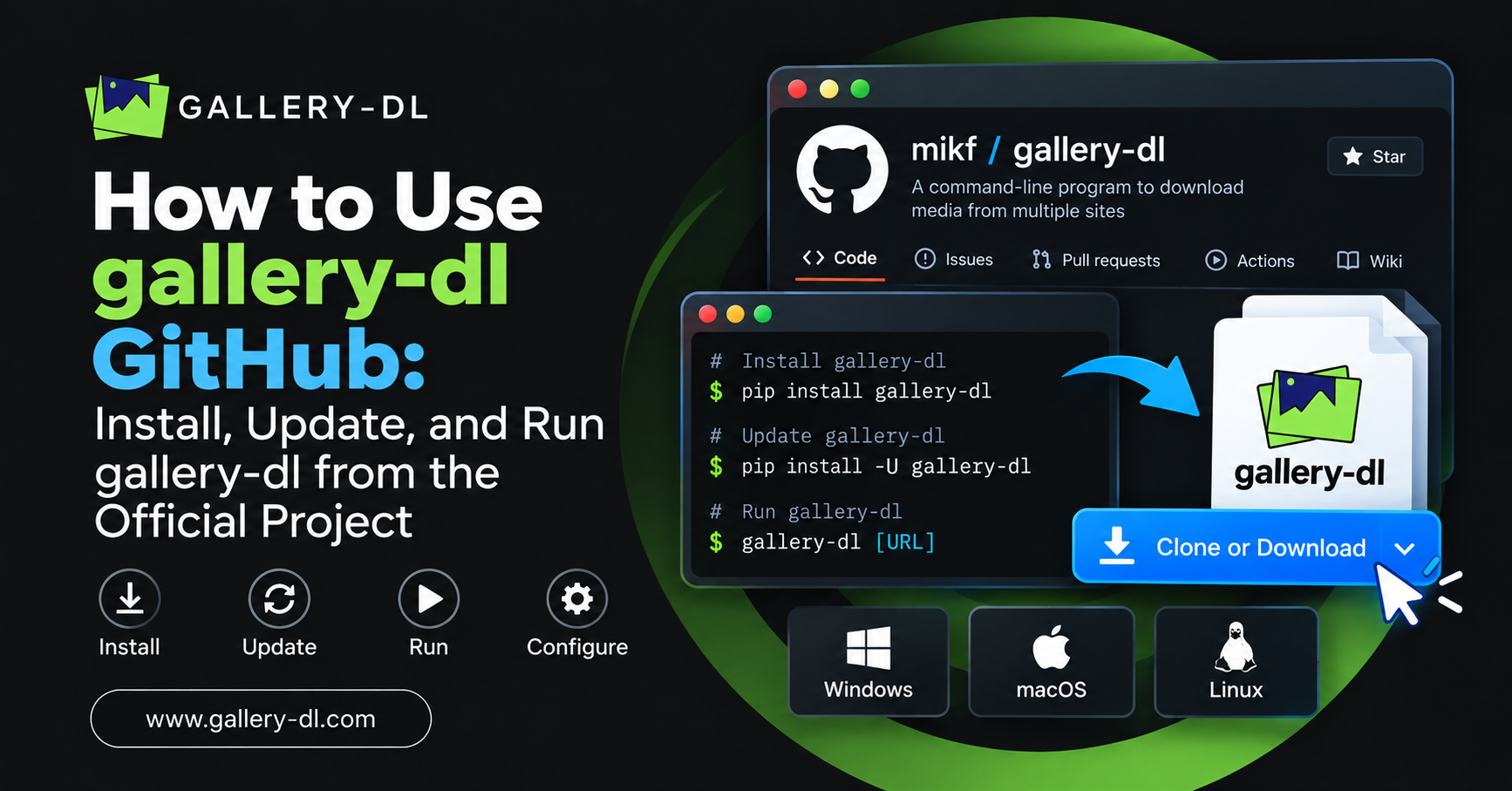
Updating Gallery-DL using pip is one of the easiest ways to install the latest version. This method works on Windows, Mac, and Linux if Gallery-DL was originally installed through Python’s pip package manager.
Follow these steps to update Gallery-DL using pip:
- Open Terminal: Launch Command Prompt on Windows or Terminal on Mac and Linux.
- Check Version: Run
gallery-dl --versionto see your current version. - Enter Update Command: Type the following command:
python -m pip install -U gallery-dl - Use Alternative Command: On Windows, try
py -m pip install -U gallery-dlif needed. - Complete Update: Allow pip to download and install the latest available version.
- Verify Installation: Run
gallery-dl --versionagain to confirm the update.
After updating, test Gallery-DL with a supported website URL. If the version remains unchanged, check whether multiple Python installations exist or whether Gallery-DL was installed using another package manager.
How to Update Gallery-DL on Windows
You can update Gallery-DL on Windows using pip, Scoop, Chocolatey, or a standalone executable. The correct method depends on how you originally installed the tool.
Follow these steps to update Gallery-DL on Windows:
- Open Command Prompt: Launch Command Prompt or PowerShell.
- Check Installation: Run
gallery-dl --versionto check your installed version. - Update Using Pip: If installed with pip, run:
py -m pip install -U gallery-dl - Update Using Scoop: If installed through Scoop, run:
scoop update gallery-dl - Update Using Chocolatey: If installed through Chocolatey, run:
choco upgrade gallery-dl - Update Standalone Version: Download the latest compatible executable from the official Gallery-DL GitHub releases page and replace your existing executable.
- Verify Update: Run
gallery-dl --versionto check the installed version.
After updating Gallery-DL on Windows, restart Command Prompt and check the installed version. If the old version still appears, check for multiple installations or executable files in your system PATH. Using the original installation method helps prevent version conflicts and update errors.
How to Update Gallery-DL on Mac and Linux
Updating Gallery-DL on Mac and Linux helps improve website compatibility, fix download errors, and access the latest features. You can update Gallery-DL using pip, Homebrew, or your Linux package manager, depending on how it was originally installed.
Follow these steps to update Gallery-DL on Mac and Linux:
- Open Terminal: Launch the Terminal application on your Mac or Linux computer.
- Check Current Version: Run
gallery-dl --versionto check the installed version. - Update Using Pip: If installed through pip, run:
python3 -m pip install -U gallery-dl - Update Using Homebrew: On macOS, run the following command if installed through Homebrew:
brew upgrade gallery-dl - Update on Linux: Use your original Linux package manager to update Gallery-DL.
- Verify Update: Run
gallery-dl --versionagain to confirm the updated version.
After updating, restart Terminal and test Gallery-DL using a supported URL. If the update fails, check your installation method and Python environment. Some Linux package managers may provide older versions than the latest official release.
How to Fix Gallery-DL Update Problems
Gallery-DL update problems may occur because of outdated Python versions, incorrect installation commands, missing permissions, or multiple installations. Users may experience failed updates, unrecognized commands, or the old Gallery-DL version appearing after installation.
To fix these issues, check your Python and pip installation before running the update command again. Make sure you are using the correct package manager and have the required permissions. If Gallery-DL still shows an older version, check your system PATH for duplicate installations. Restart Terminal and verify the version after making changes.
How to Verify Gallery-DL Is Updated Successfully
After updating Gallery-DL, checking the installed version helps confirm that the update was successful. You can verify the installation using Command Prompt or Terminal and compare the version number with the latest official release.
Follow these steps to verify your Gallery-DL update:
- Open Terminal: Launch Command Prompt on Windows or Terminal on Mac and Linux.
- Check Version: Run
gallery-dl --versionto display the installed version. - Compare Versions: Visit the official Gallery-DL GitHub releases page and check the latest version.
- Check Commands: Run
gallery-dl --helpto confirm the tool responds correctly. - Test Download: Try downloading permitted content from a supported website.
- Check Errors: Make sure Gallery-DL runs without installation or command errors.
If the version number matches the latest release and downloads work correctly, your update was successful. If an older version appears, check for duplicate installations or incorrect system PATH settings.
Tips to Keep Gallery-DL Updated and Working Properly
Keeping Gallery-DL updated helps prevent download failures, website compatibility issues, and unexpected errors. Regular maintenance also ensures the tool works smoothly when downloading images, videos, and galleries from supported websites.
Follow these useful tips to maintain Gallery-DL:
- Check Updates Regularly: Visit the official GitHub releases page for new versions.
- Use Original Installation Method: Update through pip, Homebrew, or the package manager you originally used.
- Back Up Settings: Save a copy of your configuration file before updating.
- Use Trusted Sources: Download updates only from official repositories.
- Keep Python Updated: Use a supported Python version for better compatibility.
- Test Downloads: Check whether Gallery-DL works correctly after updating.
Always verify your installed version after an update. Avoid installing Gallery-DL through multiple package managers, as this can cause version conflicts and make future updates difficult.
Frequently Asked Questions (FAQs)
Here are some common questions about updating Gallery-DL. These answers cover update commands, version checks, installation problems, and configuration settings.
1. How do I update Gallery-DL using pip?
Open Command Prompt or Terminal and run python -m pip install -U gallery-dl. After installation, use gallery-dl --version to verify the update.
2. How do I check the latest Gallery-DL version?
Run gallery-dl --version to check your installed version. Visit the official Gallery-DL GitHub releases page to compare it with the latest available release.
3. Can I update Gallery-DL without reinstalling it?
Yes, you can update Gallery-DL without manually uninstalling it. Use the same package manager you originally used to install the latest available version.
4. Why is Gallery-DL not updating?
Gallery-DL may fail to update because of outdated Python versions, permission errors, incorrect commands, or multiple installations. Check your installation method and system PATH settings.
5. Does updating Gallery-DL delete my settings?
No, updating Gallery-DL normally keeps your existing configuration files and settings. However, backing up your configuration before updating is recommended to prevent accidental data loss.