Gallery-DL Coomer DDoS-Guard errors can prevent users from downloading images, videos, and other media files. Many users face problems like 403 Forbidden errors, blocked requests, connection timeouts, and security verification messages when accessing Coomer through Gallery-DL.
These errors usually occur because DDoS-Guard blocks automated requests to protect the website. This guide explains common causes, troubleshooting methods, and ways to reduce Gallery-DL Coomer download problems.
Table of Contents
ToggleWhat Is the Gallery-DL Coomer DDoS-Guard Error?
The Gallery-DL Coomer DDoS-Guard error occurs when Coomer’s website security system blocks requests made by Gallery-DL. DDoS-Guard is a security service that protects websites from suspicious traffic, automated requests, and potential attacks.
When Gallery-DL encounters this protection, downloads may fail with 403 Forbidden errors, security challenges, or connection problems. This does not always mean Gallery-DL is broken. The website may temporarily restrict automated access, even when its pages open normally in a browser.
Why Does DDoS-Guard Block Gallery-DL on Coomer?
DDoS-Guard may block Gallery-DL on Coomer because it detects automated download requests as suspicious traffic. The security system protects the website from excessive requests, unauthorized access, and potential cyberattacks.
Here are some common reasons why DDoS-Guard blocks Gallery-DL:
- Automated Requests: Gallery-DL sends requests that may trigger website security checks.
- Too Many Requests: Frequent downloads can activate temporary restrictions.
- IP Restrictions: Certain IP addresses may be blocked or limited.
- Expired Sessions: Invalid authentication sessions can cause access problems.
- Security Challenges: DDoS-Guard may require browser verification before allowing access.
- Server Problems: Temporary website issues can interrupt downloads.
These restrictions do not always indicate a problem with Gallery-DL. DDoS-Guard may block automated traffic while allowing normal browser access. Users should check website availability and avoid excessive download requests.
Common Gallery-DL Coomer DDoS-Guard Error Messages
Gallery-DL may display different error messages when DDoS-Guard blocks access to Coomer. These errors usually indicate website security restrictions, connection problems, or failed requests.
Understanding each error message can help you identify the problem and choose the correct troubleshooting method.
Gallery-DL 403 Forbidden Error
A 403 Forbidden error appears when the Coomer server refuses Gallery-DL’s request. This may happen because of IP restrictions, security rules, or automated traffic detection.
To identify the issue, check whether Coomer opens normally in your browser. If automated access remains blocked, avoid repeated requests and check for temporary website restrictions.
DDoS-Guard Challenge Detected
A DDoS-Guard challenge appears when the website requires additional security verification before allowing access. Gallery-DL may not be able to complete browser-based verification automatically.
This can prevent Gallery-DL from downloading media even when the website works in a browser. Check the official Gallery-DL documentation for supported access methods.
Gallery-DL Connection Timed Out
A connection timeout occurs when Gallery-DL does not receive a server response within the allowed time. Slow internet connections, server overload, or network restrictions may cause this error.
Check your internet connection and website availability. If Coomer is temporarily unavailable, try again after normal access is restored.
How to Fix Gallery-DL Coomer DDoS-Guard Errors
Gallery-DL Coomer DDoS-Guard errors usually occur when the website blocks automated requests or detects unusual traffic. These restrictions can cause 403 Forbidden errors, connection failures, and interrupted downloads.
Follow these steps to troubleshoot Gallery-DL Coomer DDoS-Guard errors:
- Update Gallery-DL: Install the latest version to fix known bugs and compatibility issues.
- Check Website Access: Open Coomer in your browser to see whether the website is available.
- Verify URL: Make sure you are using a correct and supported Coomer link.
- Check Internet Connection: Confirm that your connection is stable.
- Review Error Messages: Identify whether the error is related to authentication, server availability, or DDoS-Guard protection.
- Avoid Repeated Requests: Stop downloading temporarily if the website blocks automated traffic.
- Check Official Updates: Review Gallery-DL’s GitHub issue tracker for known Coomer problems.
If DDoS-Guard continues blocking Gallery-DL, the issue may be caused by website security restrictions rather than your settings. Wait for normal access to return or contact the website’s support. Avoid attempting to bypass security challenges.
How to Update Gallery-DL to Fix Coomer Download Errors
Updating Gallery-DL may help resolve Coomer download errors caused by outdated extractors, software bugs, or website compatibility changes. However, an update cannot guarantee access when DDoS-Guard actively blocks automated requests.
Follow these steps to update Gallery-DL:
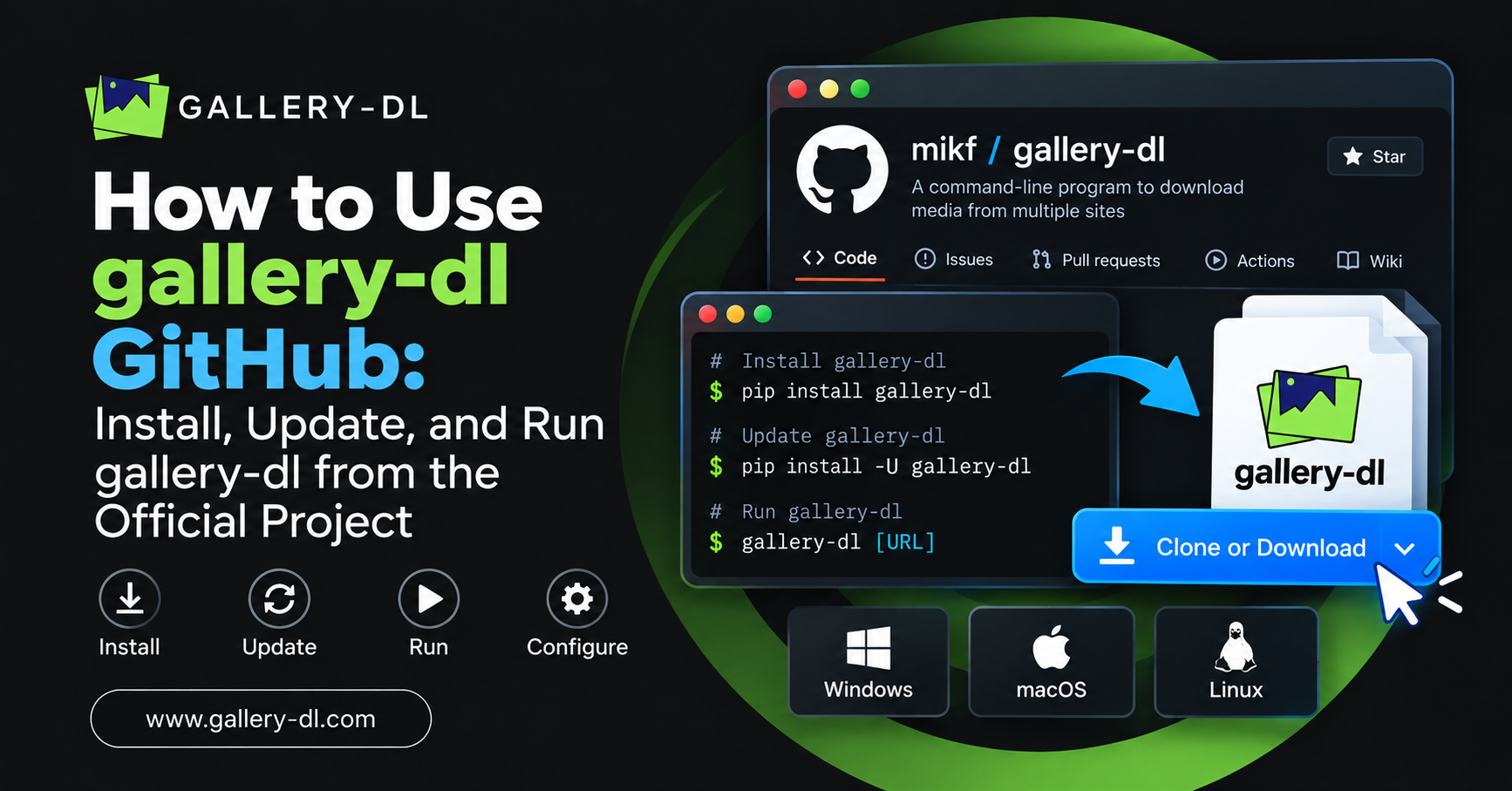
- Open Terminal: Launch Command Prompt on Windows or Terminal on Mac and Linux.
- Check Version: Run the following command:
gallery-dl --version - Update Gallery-DL: If installed through pip, enter:
python -m pip install -U gallery-dl - Complete Installation: Allow pip to download and install the updated version.
- Verify Update: Run
gallery-dl --versionagain. - Test Download: Try an accessible Coomer URL that you have permission to download.
- Check Errors: Review any remaining download or security messages.
After updating, restart your Terminal and check whether Gallery-DL works correctly. If DDoS-Guard errors continue, review the official Gallery-DL issue tracker for known problems. Website security restrictions may require a fix from the service provider rather than a software update.
How to Check Gallery-DL Coomer Authentication Problems
Gallery-DL Coomer authentication problems may occur because of expired sessions, incorrect access settings, or website security restrictions. Users may experience failed downloads, login errors, or blocked requests when trying to access media through Gallery-DL.
Follow these steps to check authentication problems:
- Check Website Access: Open Coomer in your browser and confirm that the website is accessible.
- Verify Account Access: Make sure your account has permission to view the requested content, if authentication is required.
- Check Authentication Settings: Review Gallery-DL’s configuration file for incorrect authentication details.
- Check Session Status: Confirm that your authorized session has not expired.
- Review Error Messages: Look for authentication errors, 403 Forbidden responses, or DDoS-Guard challenges.
- Check Website Support: Review Gallery-DL’s documentation for supported authentication methods.
If authentication errors continue, update Gallery-DL and verify your account access. Remember that DDoS-Guard security challenges are different from normal login problems and may prevent automated downloads.
How to Fix Gallery-DL Coomer 403 Forbidden Errors
A Gallery-DL Coomer 403 Forbidden error occurs when the website refuses a download request. This may happen because of DDoS-Guard protection, restricted IP addresses, excessive requests, or temporary website access limitations.
Follow these steps to troubleshoot the 403 Forbidden error:
- Check Coomer Availability: Open the website in your browser to confirm that it is accessible.
- Verify URL: Make sure the Coomer link is correct and supported by Gallery-DL.
- Update Gallery-DL: Install the latest compatible version to address known software issues.
- Check Internet Connection: Confirm that your network connection is stable.
- Review Error Details: Check whether the 403 response comes from DDoS-Guard or another access restriction.
- Stop Repeated Requests: Avoid retrying downloads continuously when access is denied.
- Check Official Reports: Visit Gallery-DL’s GitHub issue tracker for known Coomer access problems.
If the 403 Forbidden error continues, the website may be blocking automated downloads. Wait for temporary restrictions to expire or contact the website’s support. Updating Gallery-DL cannot automatically remove DDoS-Guard restrictions.
How to Prevent Gallery-DL Coomer Download Problems
Preventing Gallery-DL Coomer download problems requires keeping the tool updated and following website access rules. Proper settings and controlled download requests can help reduce connection errors, failed downloads, and temporary restrictions.
Follow these useful tips to prevent Gallery-DL Coomer errors:
- Update Gallery-DL: Install the latest compatible version to reduce software bugs.
- Check Website Availability: Make sure Coomer is accessible before downloading.
- Use Correct URLs: Enter valid and supported Coomer links.
- Avoid Excessive Requests: Limit repeated downloads to reduce temporary restrictions.
- Protect Login Details: Keep authentication cookies and account information private.
- Check Error Messages: Review download errors to identify possible problems.
- Follow Website Rules: Respect DDoS-Guard security restrictions and content permissions.
Regularly check Gallery-DL’s official GitHub repository for updates and known issues. If Coomer blocks automated requests, stop downloading and wait for access to return. These practices can help reduce common download problems but cannot guarantee that DDoS-Guard will allow access.
Frequently Asked Questions (FAQs)
Here are some common questions about Gallery-DL Coomer DDoS-Guard errors. These answers cover website restrictions, 403 Forbidden messages, download failures, and troubleshooting methods.
1. Why is Gallery-DL showing a DDoS-Guard error on Coomer?
Gallery-DL may show a DDoS-Guard error because Coomer detects automated download requests as suspicious traffic. The security system may temporarily block access to protect the website.
2. How do I fix Gallery-DL Coomer 403 Forbidden errors?
Check the Coomer URL, update Gallery-DL, and verify website availability. If DDoS-Guard blocks automated requests, wait for restrictions to expire instead of repeatedly retrying downloads.
3. Does updating Gallery-DL fix Coomer DDoS-Guard problems?
Updating Gallery-DL may fix software bugs and website compatibility problems. However, it cannot guarantee a solution when DDoS-Guard actively blocks automated traffic.
4. Why does Coomer work in my browser but not Gallery-DL?
Coomer may work in your browser because it supports security verification that Gallery-DL cannot complete. DDoS-Guard may treat browser traffic and automated requests differently.
5. Can Gallery-DL download from Coomer when DDoS-Guard is active?
Gallery-DL may download accessible content when DDoS-Guard allows its requests. However, downloads can fail if the security system blocks automated access or requires additional verification.