Introduction
Gallery-dl is an advanced, open-source tool that allows users to download images, videos, and galleries from a wide range of websites. While its command line interface (CLI) might seem intimidating to some, it offers a flexible and powerful way to download media content.
In this article, we’ll explain how Gallery-dl works, focusing on its command-line interface and the configuration options that let users tailor the downloader to their needs. Whether you’re a beginner or an advanced user, this guide will help you understand Gallery-dl’s inner workings and use it effectively.
What is gallery-dl?
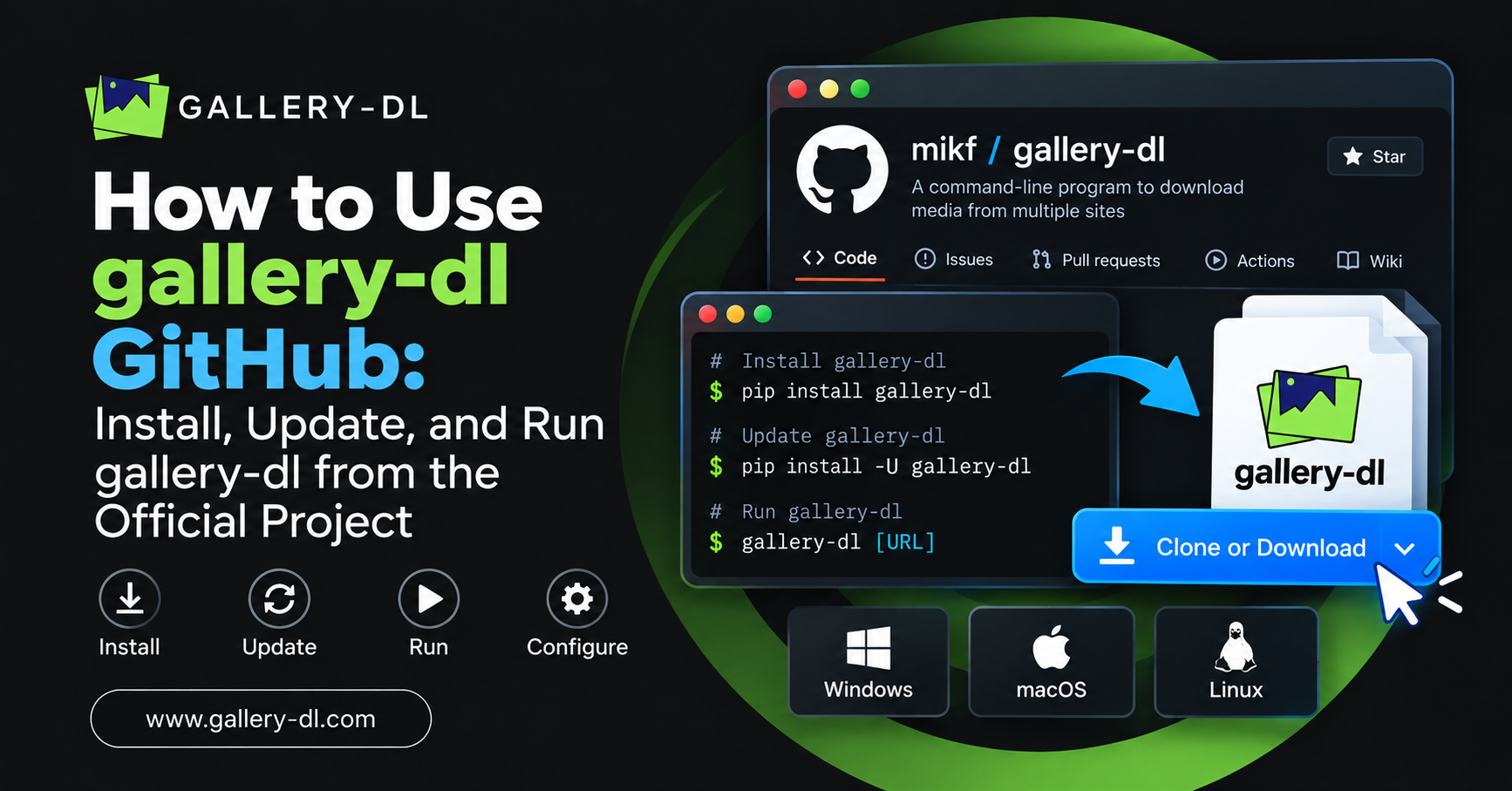
Before diving into the details of how Gallery-dl works, let’s briefly recap what it is. Gallery-dl is a command-line tool that allows downloading media content, such as images, videos, and galleries, from a wide range of online platforms. These platforms include popular sites such as Instagram, Flickr, Pixiv, DeviantArt, and others. It can download media in bulk, organize files, and even retrieve metadata, making it an essential tool for users who need to collect and organize media from various websites.
Gallery-dl is open-source and works on Windows, macOS, and Linux. It is lightweight, fast, and highly customizable, making it an ideal solution for users who need a streamlined way to download digital content.
Understanding the Command-Line Interface (CLI) in Gallery-dl
At its core, Gallery-dl operates through a command-line interface (CLI). This means users interact with the program by typing commands into the terminal, which can seem intimidating at first, especially for those unfamiliar with command-line tools. However, the CLI offers several advantages:
Speed: Gallery-dl runs faster than graphical tools because it doesn’t need to load unnecessary interfaces.
Flexibility: It supports custom commands and automated downloads, making it ideal for power users.
Minimal Resource Usage: The absence of a GUI (graphical user interface) means gallery-dl safe fewer system resources.
Let’s break down how to use the command line effectively in Gallery-dl.

Basic Command Structure of Gallery-dl
The basic command structure of Gallery-dl is quite simple:
gallery-dl <URL>
Here’s how it works:
gallery-dl: This is the name of the program.
This is the URL of the media you want to download. This could be a gallery, image, or video link from any supported platform.
For example, to download media from an Instagram account, you would use the following command:
gallery-dl https://www.instagram.com/username
This command will download all the media from that specific Instagram profile. Gallery-dl will automatically detect the content type (images or videos) and begin the download.
Advanced Command-Line Usage
Once you are comfortable with basic commands, you can start using the more advanced features that gallery-dl offers. These features give you more control over how and what content is downloaded.
1. Downloading Multiple URLs
Gallery-dl allows you to download from multiple URLs at once. To do this, you can simply list each URL separated by a space:
gallery-dl https://www.instagram.com/username1 https://www.instagram.com/username2
This command will queue the downloads and start downloading from both Instagram profiles.
2. Custom Output Directory
By default, Gallery-dl saves the downloaded media in the current directory. If you want to specify a different location for saving your files, you can use the -d flag to define the output directory:
gallery-dl -d “/path/to/directory” https://www.instagram.com/username
This command will download all media from the specified Instagram profile and save it in the directory you’ve chosen.
3. Downloading Specific Content Types
If you only want to download specific media types, such as images or videos, you can specify the format with the –format option.
For example, to only download images from a profile, use:
gallery-dl –format images https://www.instagram.com/username
Similarly, to download videos only, use:
gallery-dl –format videos https://www.instagram.com/username
This ensures you only download the type of media you’re interested in.
4. Limiting Download Quality
You can also control the media download quality, especially for images and videos. Use the –quality flag to set a minimum download quality. For example:
gallery-dl –quality high https://www.instagram.com/username
This command ensures that only high-quality media will be downloaded.
Configuration of Gallery-dl: How to Fine-Tune Your Downloads
In addition to commands, Gallery-dl provides a configuration file that allows users to customize its behavior to suit their preferences. The configuration file is written in JSON format and contains various settings that control how gallery-dl operates.
Where to Find the Configuration File
The default configuration file is located in the following paths:
Windows: C:\Users<username>\AppData\Roaming\gallery-dl\config.json
macOS/Linux: ~/.config/gallery-dl/config.json
If the file doesn’t already exist, you can create it manually.
Common Configuration Options
Here are some of the most common configuration options you can adjust in the config.json file:
Download Directory:
This option allows you to specify a default download directory, so you don’t need to set the -d flag every time.
“output”: “/path/to/directory”
File Naming:
You can define how the downloaded files are named. For instance, you can use the following settings to organize files by platform, gallery, or author:
“filename”: “{author}/{title}/{filename}”Download Filters:
If you want to download specific media types or exclude certain types, you can set filters. For example, if you want to only download images that are above a certain resolution, you can configure a filter like this:
“filters”: {

“min_width”: 1000,

“min_height”: 1000

}
Post-processing:
Gallery-dl allows you to run post-processing scripts on your downloaded content. This is useful for actions like renaming files or converting file formats after the download is complete.
“postprocessors”: [

{

“name”: “ffmpeg”,

“args”: [“-v”, “quiet”, “-acodec”, “libmp3lame”, “-ab”, “192k”, “-f”, “mp3”]

}

]
Authentication and Session Handling
For platforms that require authentication (like Instagram or Flickr), you can store your login credentials in the configuration file, so you don’t have to enter them each time.
“auth”: { “instagram”: { “username”: “your-username”, “password”: “your-password” } }This will allow Gallery-dl to automatically log in and access protected content.
How to Automate Downloads with Gallery-dl
One of the standout features of Gallery-dl is its ability to automate downloads using scripts. For users who regularly download media from certain sources, this feature can save time and effort.
You can write scripts in Bash (for Linux/macOS) or PowerShell (for Windows) that run a series of Gallery-dl commands. For example, a bash script might look like this:
#!/bin/bash
Download images from specific Instagram profiles.
gallery-dl https://www.instagram.com/username1

gallery-dl https://www.instagram.com/username2
Save the content in a specific directory.
gallery-dl -d “/path/to/folder” https://www.flickr.com/photos/username
This script will download media from specified profiles and save them to your desired folder.
Frequently Asked Questions (FAQs)
What is Gallery-dl?
Gallery-dl is a command-line tool that lets users download media from supported websites, including Instagram, Pixiv, and DeviantArt. It is highly customizable and works well for batch downloading large amounts of media.
Do I need to use the command line for Gallery-dl?
Yes, Gallery-dl operates on the command line, offering speed, flexibility, and customization. However, once you get used to it, you’ll find it much more efficient than graphical tools.
How do I configure Gallery-dl?
You can configure Gallery-dl through the config.json file. This allows you to customize the download location, file naming, filters, and more.
Can gallery-dl download videos?
Yes, gallery-dl can download videos from supported platforms like Instagram and YouTube. You can specify the video format and quality using the command-line options.
How do I automate gallery-dl?
You can automate downloads by writing scripts in Bash or PowerShell. This lets you queue up multiple download tasks and run them with a single command.
Conclusion
Gallery-dl provides a robust, flexible way to download media from various online platforms. While it operates through the command line, its power lies in its customizability and automation capabilities.
With the ability to configure settings, automate downloads, and fine-tune the process to your preferences, Gallery-dl is the perfect solution for media collectors and digital content enthusiasts.
By understanding how to use the command-line interface and configuration options, you can maximize Gallery-dl’s potential and streamline your media download process.
Latest Post: